Linux Mint 22: Excellent Distro for Windows Users


ExplainingComputers
@explainingcomputersAbout
Weekly videos on computing and related topics. ExplainingComputers is produced and presented by Christopher Barnatt, who spent 25 years teaching computing and future studies in the University of Nottingham, and who is the author of thirteen books including "Digital Genesis: The Future of Computing, Robots and AI", "3D Printing: Third Edition" and "The Next Big Thing". If you are looking for hardware that I use in my videos, I have created Amazon Storefronts (US & UK) that are linked below. Please note that as an Amazon Associate I earn a commission from any qualifying purchases you may make. Please note that the e-mail address below really is for business enquiries only. If you want to contact me on another matter, please do so via a video comment. Due to the volume of communications I receive, I cannot offer a technical support service via e-mail.
Latest Posts

Video Description
Linux Mint 22 review and demo, including full installation and setup tutorial for those transitioning from Windows. Linux Mint 22 can be freely download via https://www.linuxmint.com/ The Etcher application I used to create a Linux Mint 22 USB drive is also free to download here: https://etcher.balena.io/ And you can find my video Windows and Linux dual boot options here: https://www.youtube.com/watch?v=KWVte9WGxGE (it covers more than the dual drive setup mentioned in the title). And you may also find useful my “Linux Survival Guide” series -- the first part of which is here: https://www.youtube.com/watch?v=FeDYxBulZ6c And my video “Linux Mint: Tips & Tricks” is here: https://www.youtube.com/watch?v=HKCowLHiQ8o Oh, and a full list of ExplainingComputers Linux videos – including reviews of many distros -- is available here: https://www.explainingcomputers.com/linux_videos.html BOOTING FROM A USB DRIVE Exactly how you boot from the Linux Mint USB drive does I’m afraid depend on your particular computer. Often a boot menu can be accessed by pressing a particular key when you power-on, which may well be F12, F11 or F10. And if you can bring up such a menu when booting, you can simply select the USB drive. Alternatively, you can enter the BIOS/UEFI, again by pressing an appropriate key on power-up, which is commonly F2, Del or Esc. Once in the BIOS you can then hopefully find a setting that will change the boot order to have USB first, so that your computer will always first try to boot from an inserted USB drive. However, to work, this may also require you to disable a feature called “Secure Boot”, which you may then have turn on again if you want Windows to boot on your PC (it depends on the version). However, once in the BIOS, there is often an “Exit” or similar menu (usually on the end on the right) that offers a “boot override” facility. And this allows you to select to boot from a USB drive just once without having to make any BIOS changes. So here you would select your inserted USB drive, and your computer would then happily boot from it. Sadly, UEFI/BIOS settings and USB boot configurations are just not standardized, so I cannot give you a definitive set of instructions! But I do provide more guidance in my video on “PC BIOS Settings”: https://www.youtube.com/watch?v=ezubjTO7rRI More videos on computing and related topics can be found at: http://www.youtube.com/@ExplainingComputers Chapters: 00:00 Introduction 00:54 Getting Linux Mint 03:10 Installation 06:11 NVIDIA GPU driver 07:16 What’s New? 11:11 Applications 14:43 Updates & Snapshots (Timeshift) 18:06 Fixing the Font! (Ubuntu Classic) 20:29: Xfce & MATE Editions 22:43 Wrap #LinuxMint #Linux #Mint22 #Tutorial #ExplainingComputers









Linux Mint Essentials & Accessories
AI-recommended products based on this video

BrosTrend 1800Mbps WiFi 6 Linux WiFi Adapter for PC and Raspberry Pi 2+, Long Range USB WiFi Dongle Linux for Ubuntu, Mint, Debian, Kubuntu, Lubuntu, Zorin, Windows 11/10, Dual Band Wireless Antenna

BrosTrend Linux USB WiFi Adapter 1200Mbps Supports Ubuntu, Mint, Debian, Kubuntu, Mate, Zorin, PureOS, Raspberry Pi 2+, Windows 11/10, USB3.0 Wireless Dual Band Wi-Fi 5GHz/867Mbps + 2.4GHz/300Mbps

BrosTrend AX300 Nano WiFi 6 Linux Compatible WiFi Adapter for PC and Raspberry Pi 2+, 2.4GHz Only, 286Mbps, USB WiFi Dongle for Ubuntu, Debian, Mint, Kubuntu, Lubuntu, Zorin, Xubuntu, Windows 11/10/7

BrosTrend Linux WiFi Adapter for Ubuntu, Mint, Debian, Lubuntu, Xubuntu, Mate, Zorin, PureOS, Raspberry Pi 2+, Windows 11/10, 1200Mbps, 5GHz/2.4GHz, Long Range 2 X 5dBi External Antennas, USB3.0
BrosTrend 1800Mbps WiFi 6 Linux WiFi Adapter for PC and Raspberry Pi 2+, Long Range USB WiFi Dongle Linux for Ubuntu, Mint, Debian, Kubuntu, Lubuntu, Zorin, Windows 11/10, Dual Band Wireless Antenna
BrosTrend Linux WiFi Adapter for Ubuntu, Mint, Debian, Lubuntu, Xubuntu, Mate, Zorin, PureOS, Raspberry Pi 2+, Windows 11/10, 1200Mbps, 5GHz/2.4GHz, Long Range 2 X 5dBi External Antennas, USB3.0

BrosTrend 650Mbps Linux WiFi Adapter for Ubuntu, Mint, Debian, Kubuntu, Lubuntu, Xubuntu, Zorin, PureOS, Raspberry Pi 2+, Windows 11/10/8/7/XP 5G/2.4G
BrosTrend Linux USB WiFi Adapter 1200Mbps Supports Ubuntu, Mint, Debian, Kubuntu, Mate, Zorin, PureOS, Raspberry Pi 2+, Windows 11/10, USB3.0 Wireless Dual Band Wi-Fi 5GHz/867Mbps + 2.4GHz/300Mbps

Asus Zenbook A14; Copilot+ PC, Ultrathin Laptop, 14” WUXGA OLED, Snapdragon® X Processor, 32 GB Memory, 1TB SSD, Wi-Fi 6E, Iceland Gray, UX3407QA-DS51-CA

Asus Zenbook S 14, Next-Level AI PC, 14” Ultrathin Laptop, 3K 120Hz OLED Touchscreen, Intel Core™ Ultra 7 (Series 2) Processor, 16GB Memory, 1TB SSD, Wi-Fi 7, Zumaia Gray, UX5406SA-DH71T-CB
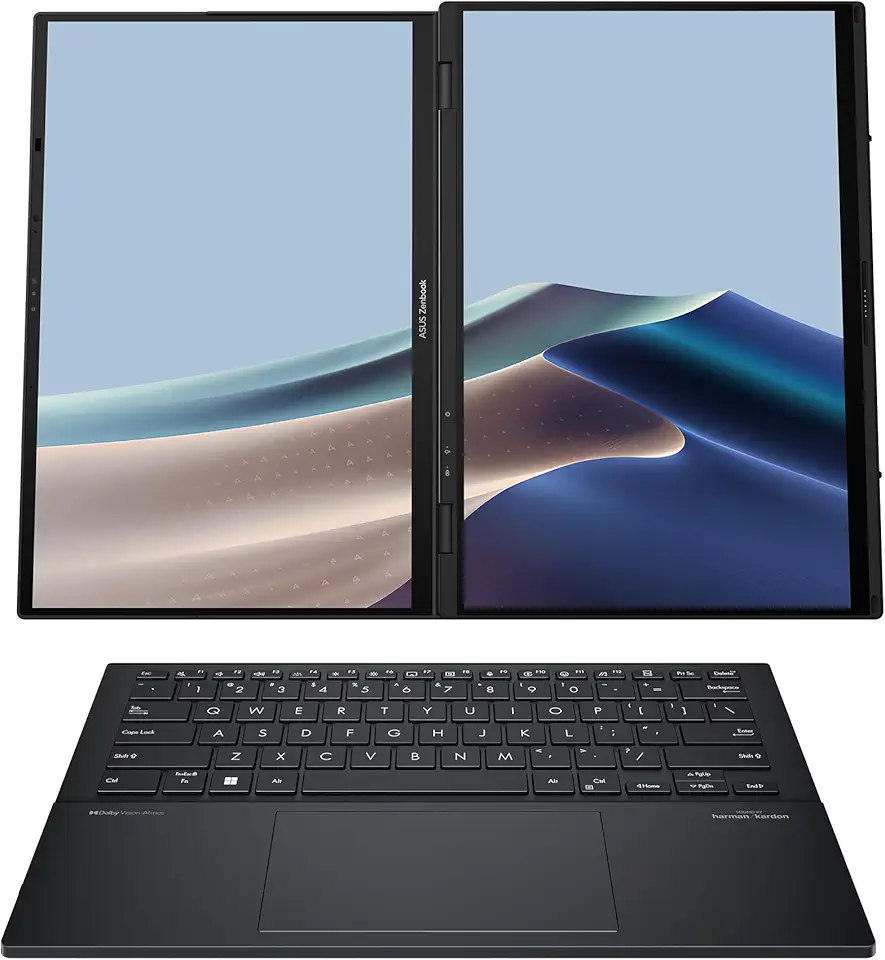
Asus Zenbook Duo (2024), Dual 14” FHD OLED Touch Laptop, Intel Evo Certified, Intel Core Ultra 7 155H CPU, Intel Arc Graphics, 16GB Memory, 1TB SSD, Windows 11 Home, UX8406MA-DS71T-CA
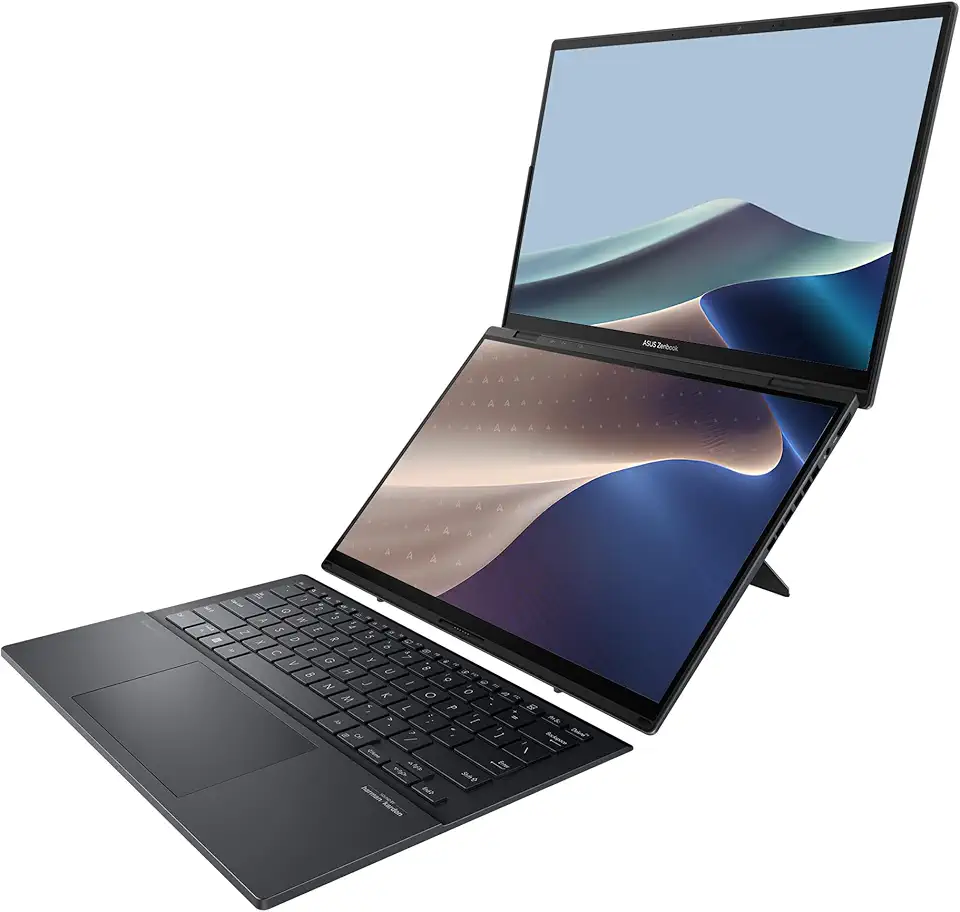
Asus Zenbook Duo (2025), AI, Dual 14” WUXGA OLED Touch Laptop, Intel Evo, Intel Core Ultra 9 285H CPU, Intel Arc, 16GB RAM, 1TB SSD, Wi-Fi 7, Windows 11 Home, Inkwell Gray, UX8406CA-DS91T-CA

Dell Inspiron 3030 Desktop - Intel Core i7-14700 Processor, 16GB DDR5 RAM, 1TB SSD, Intel UHD 770 Graphics, Windows 11 Pro, Onsite & Migrate Service - Mist Blue

90W AC Power Adapter for Dell OptiPlex 3000 5000 7000 9020 Series Micro Desktop Inspiron 20" 22" 24" 27" AIO Desktop, Inspiron 15 16 17 14 13 3000 5000 7000 Series Laptop Charger

Charger for Dell Inspiron 15 Charger, 65W Dell Inspiron 15 14 13 3000 5000 7000 Series, Dell Latitude 13 3301 3390 14 3400 3410 3420 3490 15 3500 3510 3520 3590, Dell Vostro, 4.5 * 3.0mm Power Cord

45W 65W AC Adapter Laptop Charger for Dell Inspiron 15 14 13 17 3000 5000 7000 Series 5558 5559 Charger Latitude E6440 E6430 3520 3420 XPS 13 14 9333 9350 Notebook Dell Computer Power Supply Cord

SSD SATA mSATA 500GB Dogfish Internal Solid State Drive High Performance Hard Drive Desktop Laptop SATA III 6Gb/s Includes SSD 16GB 32GB 60GB 64GB 120GB 128GB 240GB 250GB 480GB 500GB (500GB, MSATA)
SSD SATA mSATA 120GB Dogfish Internal Solid State Drive High Performance Hard Drive Desktop Laptop SATA III 6Gb/s Includes SSD 16GB 32GB 60GB 64GB 120GB 128GB 240GB 250GB 480GB 500GB (120GB, MSATA)
![SAMSUNG 870 EVO SATA SSD 500GB 2.5” Internal Solid State Drive, Upgrade PC or Laptop Memory and Storage for IT Pros, Creators, Everyday Users, MZ-77E500B/AM [Canada Version]](https://m.media-amazon.com/images/I/911ujeCkGfL._AC_UL960_FMwebp_QL65_.jpg)
SAMSUNG 870 EVO SATA SSD 500GB 2.5” Internal Solid State Drive, Upgrade PC or Laptop Memory and Storage for IT Pros, Creators, Everyday Users, MZ-77E500B/AM [Canada Version]
![SAMSUNG 870 EVO SATA III SSD 4TB 2.5” Internal Solid State Drive, Upgrade PC or Laptop Memory and Storage for IT Pros, Creators, Everyday Users, MZ-77E4T0B/AM [Canada Version]](https://m.media-amazon.com/images/I/71W2nK7LUrL._AC_UL960_FMwebp_QL65_.jpg)
SAMSUNG 870 EVO SATA III SSD 4TB 2.5” Internal Solid State Drive, Upgrade PC or Laptop Memory and Storage for IT Pros, Creators, Everyday Users, MZ-77E4T0B/AM [Canada Version]

Samsung 990 EVO Plus - 4TB PCIe Gen4. X4, Gen5. X2 NVMe 2.0 - M.2 Internal SSD, Speed Up to 7,250 MBs, Upgrade Storage for PC-Laptops, HMB Technology and Intelligent Turbowrite (MZ-V9S4T0B/AM)
![SAMSUNG EVO Select Micro SD-Memory-Card + Adapter, 128GB microSDXC 160MB/s Full HD & 4K UHD, UHS-I, U3, A2, V30, for Android Smartphones, Tablets, Nintendo-Switch (MB-ME128SA/AM) [Canada Version]](https://m.media-amazon.com/images/I/71lzXt4djxL._AC_UY654_FMwebp_QL65_.jpg)
SAMSUNG EVO Select Micro SD-Memory-Card + Adapter, 128GB microSDXC 160MB/s Full HD & 4K UHD, UHS-I, U3, A2, V30, for Android Smartphones, Tablets, Nintendo-Switch (MB-ME128SA/AM) [Canada Version]

Corsair Vengeance LPX 32GB (2 X 16GB) DDR4 3200 (PC4-25600) C16 1.35V Desktop Memory - Black

Logitech M185 Wireless Mouse, 2.4GHz with USB Mini Receiver, 12-Month Battery Life, 1000 DPI Optical Tracking, Ambidextrous, Compatible with PC, Mac, Laptop - Black

Logitech G305 Lightspeed Wireless Gaming Mouse, Hero 12K Sensor, 12,000 DPI, Lightweight, 6 Programmable Buttons, 250h Battery Life, On-Board Memory, PC/Mac - Black

Logitech K400 Plus Wireless Touch TV Keyboard With Easy Media Control and Built-in Touchpad, HTPC Keyboard for PC-connected TV, Windows, Android, Chrome OS, Laptop, Tablet - Black

Logitech K250 Bluetooth Keyboard with Numpad, Easy Connectivity, Compact Wireless Keyboard Made with Recycled Plastic, Spill-Resistant, Comfortable Keys - Windows/MacOS - Graphite
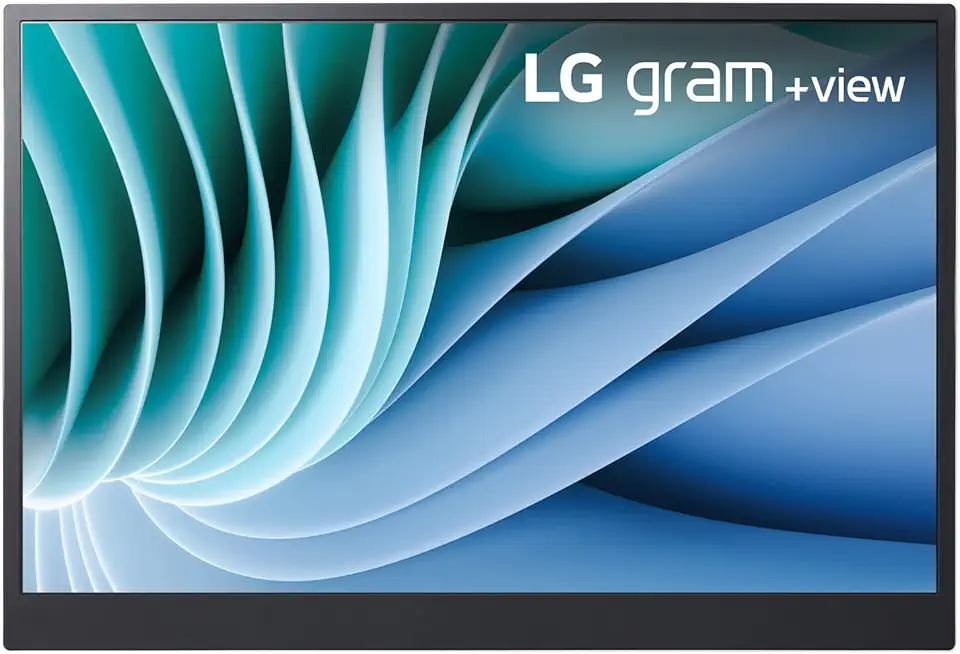
Lg gram 16-inch +View Portable Monitor with USB Type-C, DCI-P3 99% (Typ.), Auto Rotate, Two-Way Supported Folio Cover

StanbyME LG 27-Inch Class Smart Portable Touch Screen Monitor 27ART10AKPL. Built-in 3 Hour Battery, Full Swivel Rotation, Rollable. LG Stanbyme, Standbyme, Stand by me.
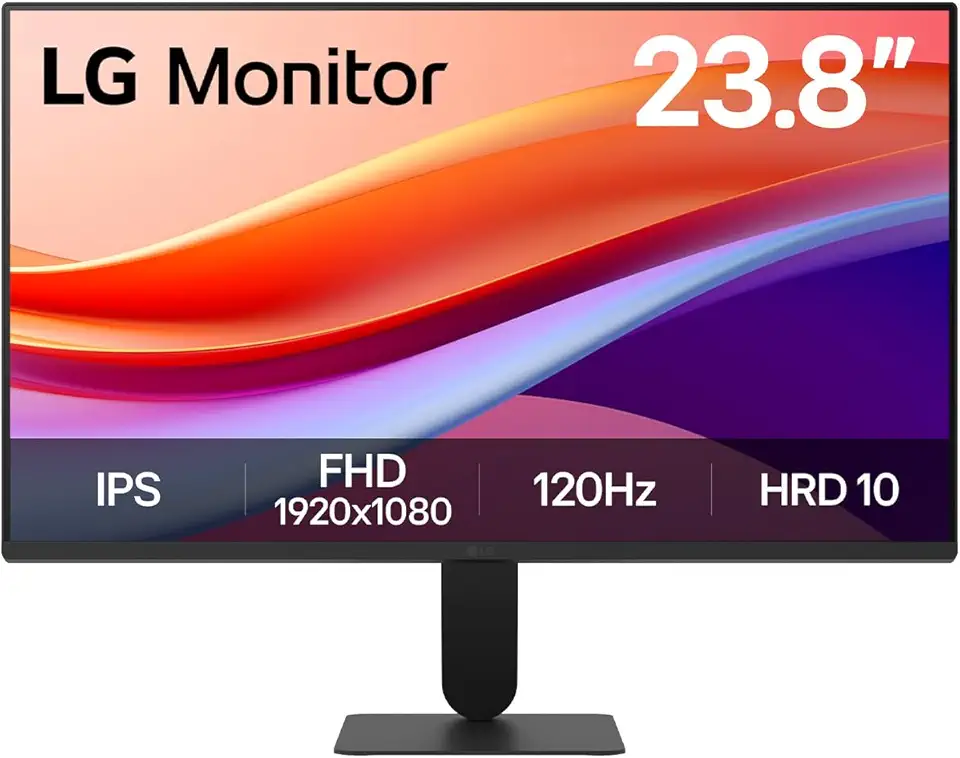
LG 24U411A-B 23.8" FHD (1920x1080) IPS Display Computer Monitor, 120Hz Refresh Rate, sRGB 99% (Typ.), USB-C, Reader Mode & Flicker Safe, Dynamic Action Sync, Black Stabilizer, Slim Stand Base, Black

LG UltraWide 34WP65C-B 34 Inch 21:9 Curved FreeSync 1ms 160 Hz WQHD(3440 x 1440) Gaming Monitor, Black
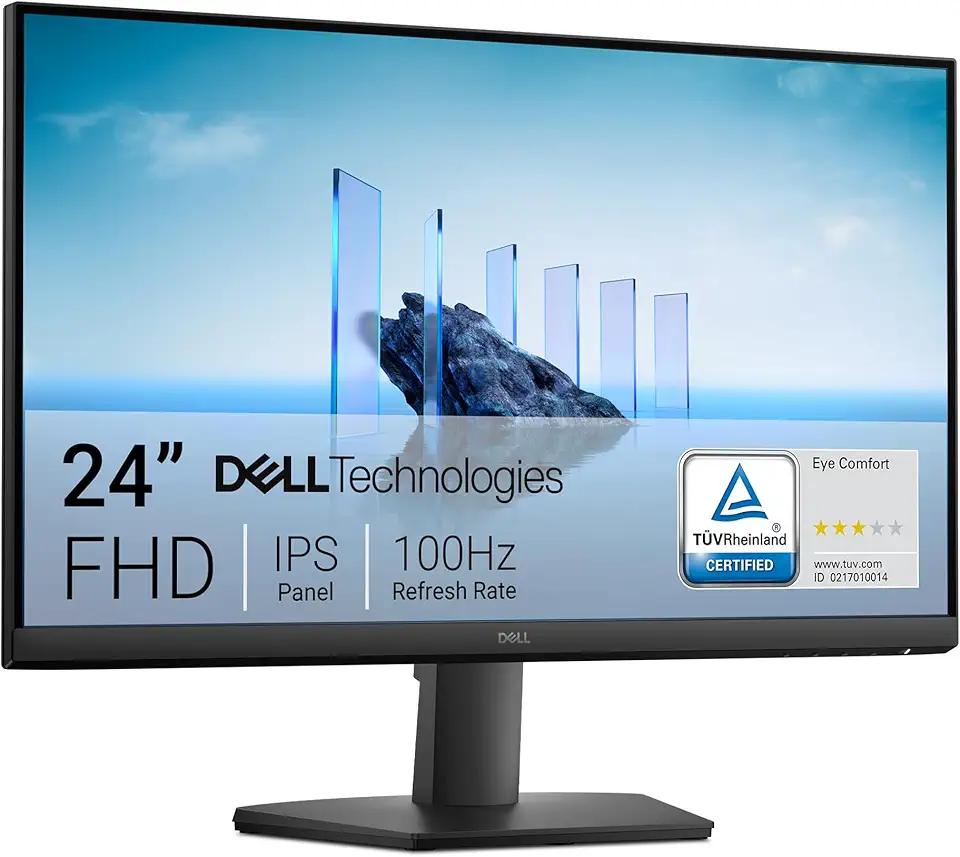
Dell 24 Monitor - SE2425HM - 23.8-inch Full HD (1920x1080) 16:9 100Hz Display, IPS Panel, 16.70 Million Colors, Anti-Glare, 1 HDMI / 1 VGA Port, TÜV Rheinland 3-Star*, Comfortview Plus - Black
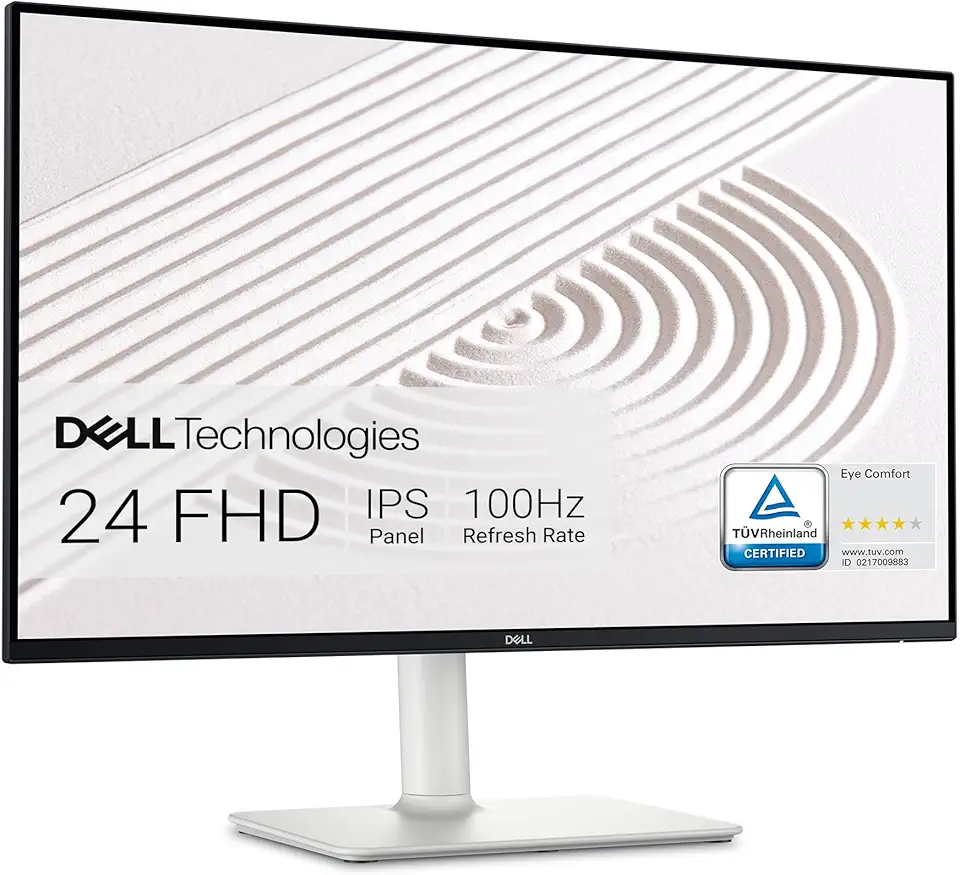
Dell S2425HS Monitor - 23.8 Inch, FHD (1920x1080) Display, 100Hz Refresh Rate 1500:1 Contrast Ratio, TÜV Rheinland Eye Comfort 4 Star, Integrated 2x5W Speaker, Height/Tilt/Swivel/Pivot - Ash White

USB C Docking Station Dual Monitor for Dell Hp,15-in-1 Laptop Docking Station 3 Monitors USB C Hub with Dual 4K HDMI,8K DP,Button,PD Charging,Ethernet,6 USB A&C,SD/TF, Audio USB-C Multiport Adapter

Dell 24 Monitor - P2425H EPEAT
BrosTrend 1800Mbps WiFi 6 Linux WiFi Adapter for PC and Raspberry Pi 2+, Long Range USB WiFi Dongle Linux for Ubuntu, Mint, Debian, Kubuntu, Lubuntu, Zorin, Windows 11/10, Dual Band Wireless Antenna
BrosTrend Linux WiFi Adapter for Ubuntu, Mint, Debian, Lubuntu, Xubuntu, Mate, Zorin, PureOS, Raspberry Pi 2+, Windows 11/10, 1200Mbps, 5GHz/2.4GHz, Long Range 2 X 5dBi External Antennas, USB3.0
BrosTrend 650Mbps Linux WiFi Adapter for Ubuntu, Mint, Debian, Kubuntu, Lubuntu, Xubuntu, Zorin, PureOS, Raspberry Pi 2+, Windows 11/10/8/7/XP 5G/2.4G
BrosTrend Linux USB WiFi Adapter 1200Mbps Supports Ubuntu, Mint, Debian, Kubuntu, Mate, Zorin, PureOS, Raspberry Pi 2+, Windows 11/10, USB3.0 Wireless Dual Band Wi-Fi 5GHz/867Mbps + 2.4GHz/300Mbps
BrosTrend 1800Mbps WiFi 6 Linux WiFi Adapter for PC and Raspberry Pi 2+, Long Range USB WiFi Dongle Linux for Ubuntu, Mint, Debian, Kubuntu, Lubuntu, Zorin, Windows 11/10, Dual Band Wireless Antenna
BrosTrend Linux WiFi Adapter for Ubuntu, Mint, Debian, Lubuntu, Xubuntu, Mate, Zorin, PureOS, Raspberry Pi 2+, Windows 11/10, 1200Mbps, 5GHz/2.4GHz, Long Range 2 X 5dBi External Antennas, USB3.0
BrosTrend 650Mbps Linux WiFi Adapter for Ubuntu, Mint, Debian, Kubuntu, Lubuntu, Xubuntu, Zorin, PureOS, Raspberry Pi 2+, Windows 11/10/8/7/XP 5G/2.4G