How To Attach Documents To Email On iPhone - Attach Files To Email On iPhone


WebPro Education
@webproeducationorgtechnologyAbout
WebPro Education Channel offers the best tips and tricks in video tutorials. Featuring electronics, websites, smartphones, tablets, Android, iOS, iPad OS, Windows 11, Mac OS e.t.c


Video Description
In this tutorial, we will guide you step-by-step on how to attach documents to an email on your iPhone. Likewise, you'll learn how to attach files to an email on iPhone. Sending documents via email is an essential skill for staying connected and sharing important files on the go. Whether you need to send a PDF, Word document, spreadsheet, or any other type of file, we've got you covered. Our expert instructor will demonstrate the entire process, starting from opening the Mail app on your iPhone to successfully attaching the desired documents. You'll learn how to navigate through your device's file system, locate the specific file you want to attach, and effortlessly include it in your email. Method 1 - Attach Documents (Files) In The Mail App Step 1: Begin by opening the Mail app on your iPhone. This app comes pre-installed on your device and features a familiar envelope icon. Step 2: Tap on the "Compose" button to start a new email. You'll be directed to a blank email template where you can enter the recipient's email address, subject, and message. Step 3: To attach a document or file, tap on the body of the email to bring up the editing menu. Next, tap on the right-facing arrow icon to expand the menu. From the expanded menu, select the "Attach File" option. Step 4: In the pop-up menu that appears, locate and tap on the "Browse" option. This action will open the Files app, which serves as a centralized hub for managing your documents and files. Step 5: Once in the Files app, navigate to the location where your desired document is stored. This could be in the "On My iPhone" section, iCloud Drive, or any other cloud storage service you use, such as Google Drive or Dropbox. Step 6: Once you've located the document, tap on it to select it. You can also select multiple documents if needed. Step 7: Before sending your email, take a moment to review the attached documents or files. If everything looks good, simply hit the "Send" icon, signified by a blue upwards facing arrow, and your email with the attached document(s) will be on its way. Method 2 - Attach Documents (Files) In The Gmail App Step 1: Open the Gmail app on your iPhone. Step 2: Tap on the "Compose" button to start a new email. You'll be directed to a blank email template where you can enter the recipient's email address, subject, and message. Step 3: To attach a document or file, tap on the attach icon (Paper clip) at the top of the page. Step 4: The pop-up menu that appears will open the Files app, which serves as a centralized hub for managing your documents and files. Once in the Files app, navigate to the location where your desired document is stored. This could be in the "On My iPhone" section, iCloud Drive, or any other cloud storage service you use, such as Google Drive or Dropbox. Step 5: Once you've located the document, tap on it to select it. You can also select multiple documents if needed. Step 6: Before sending your email, take a moment to review the attached documents or files. you can even tap on the "x" next to a document you want to remove, if you've added multiple documents. If everything looks good, simply hit the "Send" icon (paper airplane icon) at the top-right corner, and your email with the attached document(s) will be on its way. Timestamps: 0:00 - Introduction 0:18 - Identify Location Of File to Attach 1:14 - Attach Files In Mail App 2:12 - Attach Files In Gmail App 3:19 - Outro Galaxy S23 Ultra DUAL SIM 256GB 8GB Phantom Black: https://amzn.to/3IneO8x Galaxy S23 Ultra DUAL SIM 256GB 8GB Green: https://bit.ly/3xagLyr -----My Gear for YouTube videos----- Main Camera (iPhone 13 pro): https://amzn.to/3GZztve Tripod: https://amzn.to/35acqRa Cell Phone Tripod Adapter: https://amzn.to/3v3wFuI Lights: https://amzn.to/3vkoGK7 As full disclosure, I use affiliate links on this channel and purchasing through these links earns me a small commission. The price you pay will be the same! Website: https://www.webproeducation.org Facebook: https://www.facebook.com/webproeducation.org Twitter: https://twitter.com/WebPro_E Instagram: https://www.instagram.com/webproeducation/
Upgrade Your Gaming Setup Now
AI-recommended products based on this video

acer Nitro 50 N50-620-UA91 Gaming Desktop | 11th Gen Intel Core i5-11400F 6-Core Processor | NVIDIA GeForce GTX 1650 | 8GB DDR4 | 512GB NVMe M.2 SSD | Intel Wi-Fi 6 AX201 | Keyboard and Mouse
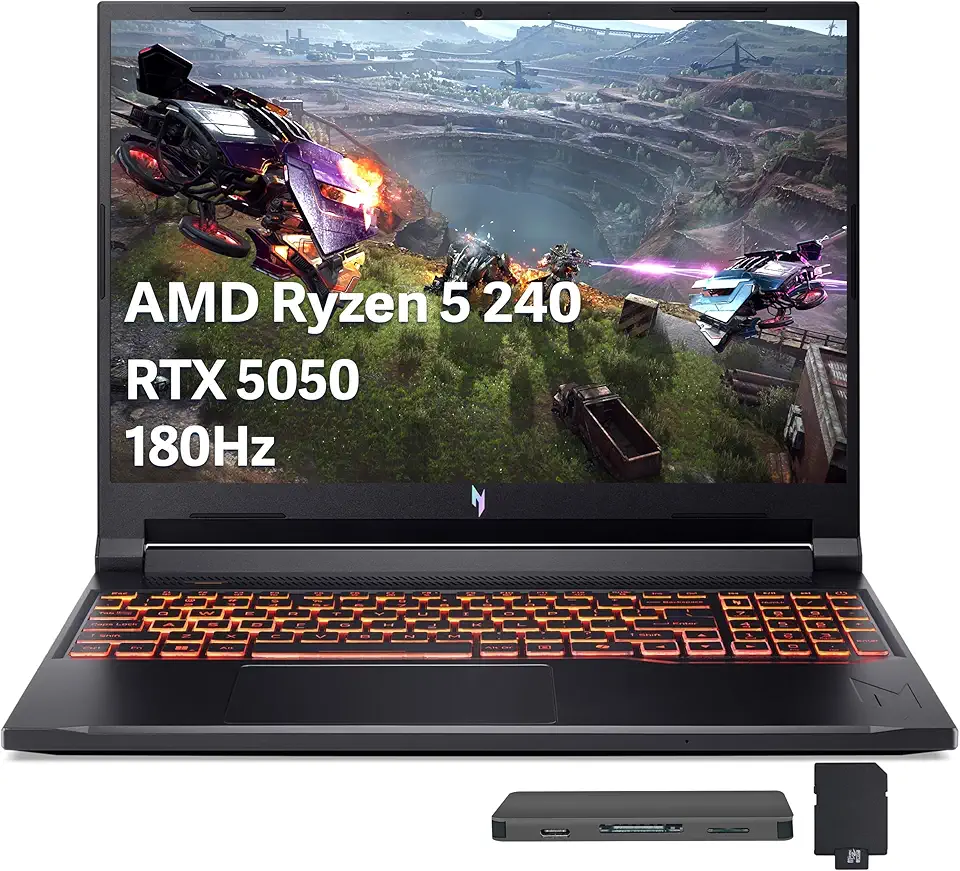
Acer Nitro V 16 AI Gaming Laptop, 16" WUXGA 180Hz Display, AMD Ryzen 5 240, GeForce RTX 5050, 16GB DDR5, 512GB SSD, Backlit Keyboard, Copilot, Wi-Fi 6E, Win 11, Black, 1TB Docking Station Set

Acer Nitro V 15.6" FHD 165Hz Gaming Laptop, Intel i5-13420H, 16GB RAM, 512GB SSD, NVIDIA GeForce RTX 5050 8GB GDDR7, Copilot, Backlit Keyboard, Wi-Fi 6, Win 11, Black, 1TB Docking Station Set

95MM T129215SU Cooling Fan for ASUS ROG Strix for GeForce RTX 3060 3070 3080 3090 Ti Graphics Card CF1010U12S/D T129215BU(Black A-Fan T12)
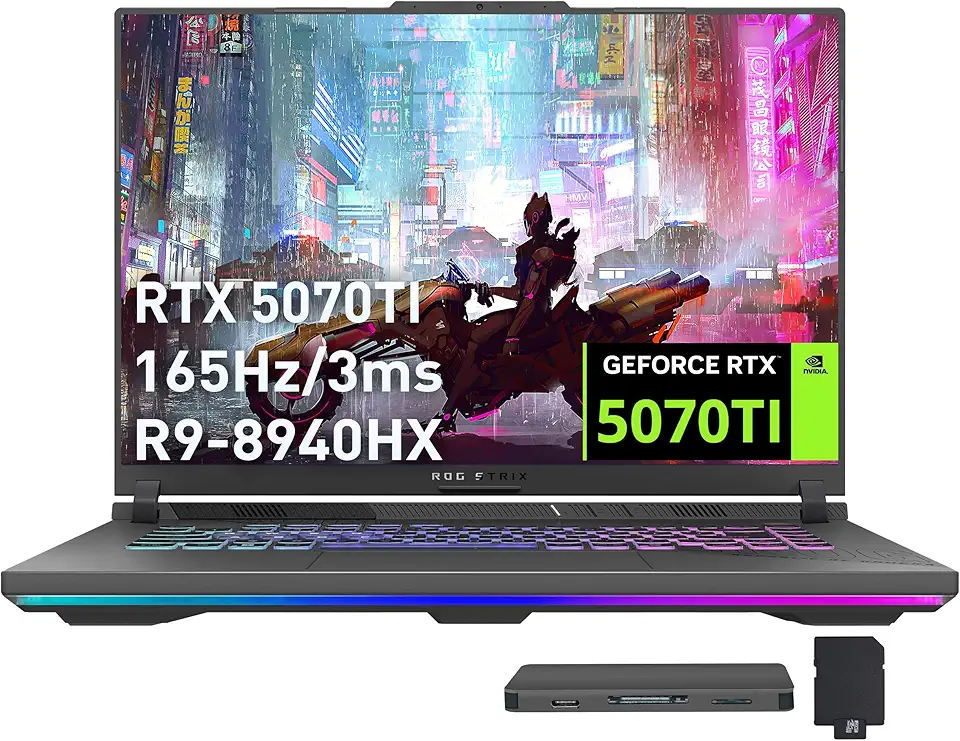
ASUS ROG Strix G16 Gaming Laptop, GeForce RTX 5070 Ti 12GB GDDR7, AMD Ryzen 9 8940HX, 64GB DDR5, 2TB SSD, Backlit Keyboard, Wi-Fi 6E, 16" WUXGA 165Hz Display, Win 11, Gray, 1TB Docking Station Set

ASUS ROG Strix G16 (2024) Gaming Laptop, 16” 16:10 FHD+ 165Hz, GeForce RTX 4060, Intel Core i7-13650HX, 16GB DDR5, 1TB PCIe SSD, Wi-Fi 6E, Windows 11, G614JV-AS71-CA

Asus ROG STRIX Z890-A GAMING WIFI Z890 LGA 1851 ATX motherboard, Intel® Core™ Ultra Series 2 Ready, Advanced AI PC-ready, 16+2+1+2 stages, DDR5, WiFi 7, 2.5G, 5x M.2, Thunderbolt™ 4, USB Type-C, AI OC

240W 180W AC Charger Fit for Dell G15 G16 G7 G5 G3 Series 5500 5505 5510 5515 5511 5520 5521 5525 5530 5535 5587 5590 7500 7588 7590 7700 7790 7620 7630 3500 3579 3590 3779 LA240PM160 Gaming Laptop
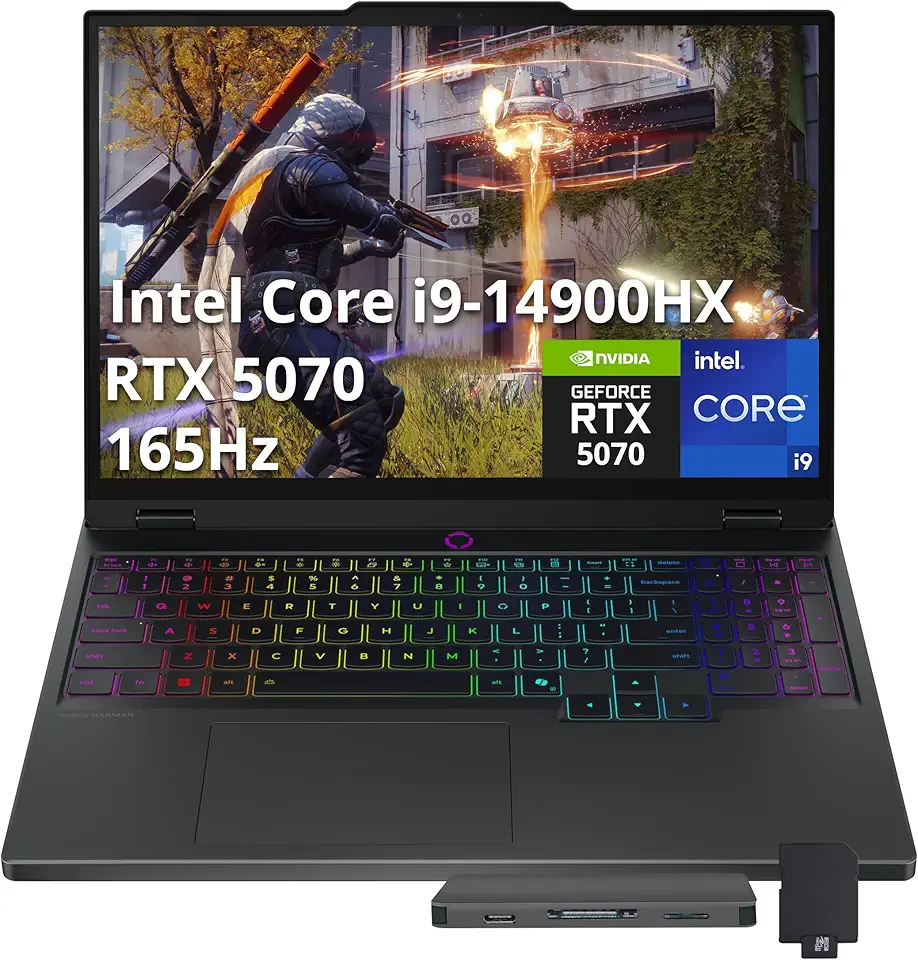
Lenovo Legion 5 15.1" WQXGA 165Hz Gaming Laptop, Intel i9 14900HX, GeForce RTX 5070 8GB GDDR7, 16GB DDR5, 2TB Storage(1TB SSD+1TB Docking Station Set), 24-Zone RGB Backlit Keyboard, Windows 11, Black

NIDOO 15.6 inch Laptop Sleeve Case Computer Bag for 15.6" Lenovo Legion 5 / IdeaPad Gaming 3i / ThinkPad L15 T15 E15 / 16" Legion 7i 9i / Legion 5 Pro/ThinkPad E16 16p /Yoga 7i / Galaxy Book3 HP Dell

NIDOO Laptop Sleeve 15.6 inch Computer Bag for 15.6" Lenovo Legion 5 / Legion Slim 7 / ThinkPad T15 E15 / 16" Legion 7i / Legion 5 Pro/IdeaPad 3i / 16.1" Gaming 16 / Acer Dell Carrying Case, Black

New Slim 230W Charger fit for Lenovo Legion 5 7 5P C7 S7 Y520 Y740 Y730 Y900 Y910 Y920 Y7000P ThinkPad P16 P15 P73 P52 P70 ADL230NLC3A Square Yellow Tip Laptop Power Supply Adapter

MSI Thin 15 15.6" 144Hz Gaming Laptop, Intel® Core™ 5-210H, RTX 4050, 16GB DDR5, 1TB NVMe SSD, Windows 11 Home

MSI Ultra-Slim Thin 15 VR-Ready High FPS Gaming Laptop, 15.6 FHD 144Hz, Intel Core i5-13420H, NVIDIA GeForce RTX 4060, 32GB RAM, 2TB SSD, Backlit KB, Wi-Fi 6, Bundle with PCO Notebook Fold Radiator

Razer BlackShark V2 X Gaming Headset: 50mm Drivers - Cardioid Mic - Memory Foam Cushion - Lightweight- Comfortable, Noise Isolating Earcups - for PC, PS4, PS5, Switch - 3.5mm Audio Jack - Black ECOLOGO

Logitech G435 Lightspeed and Bluetooth Wireless Gaming Headset - Lightweight Over-Ear Headphones, Built-in mics, 18h Battery, Compatible with Dolby Atmos, PC, Mobile - Black

HyperX Cloud II - Gaming Headset, 7.1 Surround Sound, Memory Foam Ear Pads, Durable Aluminum Frame, Detachable Microphone, Works with PC, PS5, PS4, Xbox Series X|S, Xbox One – Red

New SteelSeries Arctis Nova Pro for Xbox Multi-System Gaming Headset - Premium Hi-Fi Drivers - Hi-Res Audio - 360° Spatial - GameDAC Gen 2 - Quad-DAC - ClearCast Gen 2 Mic - Xbox, PC, PS5/PS4, Switch

NEW SteelSeries Arctis Nova 3 Multi-Platform Gaming Headset - Signature Arctis Sound - ClearCast Gen 2 Mic - PC, PS5/PS4, Xbox Series X|S, Switch, Mobile

18.5inch Portable Monitor, 1080P USB C HDMI Second External Monitor for Laptop, PC, Mac Phone, Ultra Thin Gaming Display with Stand & Speakers, for Work & Entertainment

16" Portable Monitor for Laptop - 1200P FHD Travel Monitor for Laptop IPS LCD USB C/USB A/HDMI Second Screen with Stand Gaming Monitor for PC MAC Computer Switch Phone Xbox PS4/5

16" Portable Monitor for Laptop - 1200P FHD Laptop Screen Extender HDMI USB C Travel External Display with Stand Gaming Monitor for PC MAC Switch Phone Computer Xbox PS4/5
