How to export AND import a backup of your Gmail emails

About
No channel description available.
Latest Posts
Video Description
Learn how to both export your email data from Gmail and how to import it back into another Gmail or email account It’s always a good idea to back up and save your Gmail email data using the free Google’s Takeout functionality. You can even use this tool to regularly schedule backups so you make sure you never lose any emails. 🙏 Support the Channel Interested in purchasing the fully featured Gmail Workspace? Find out more here - https://referworkspace.app.goo.gl/cstv For a 10% discount in your first year, don’t forget to use the PROMO codes below - Google Workspace Business Starter Plan - PROMO CODE: L9R9PJJETKDPGPA Google Workspace Business Standard Plan - PROMO CODE: V93EYE7LJ6ARHUM 🕔 Key Moments 00:00 | Intro 01:00 | Create an export of your Gmail data 04:46 | Import your emails into Gmail 05:15 | Step 1 - Download the Gmail MBOX export 06:20 | Step 2 - Download the Thunderbird Mozilla client 06:58 | Step 3 - Connect the Gmail account you want to upload the mails to 07:34 | Step 4 - Install the ImportExportTool NG add-on 08:32 | Step 5 - Import the mails into the email client local folder 09:42 | Step 6 - Move the emails into the Gmail Inbox 11:06 | Wrap up 🔎 Useful links See more info on how to export and save your Gmail emails in this article from the Google Support Center ‘How to download your Google data’ https://support.google.com/accounts/answer/3024190?hl=en ✅ Links referenced in this video Once logged into Google, Gmail can be found at https://mail.google.com/ To export a copy of your Gmail emails, vist Google Takeout at https://takeout.google.com/ To download the Mozilla Thunderbird email application, visit https://www.thunderbird.net/ 👍 Subscribe to the Woggle Guides YouTube channel If this guide has helped you, please help others to find this Woggle Guide and SUBSCRIBE at this link - https://bit.ly/3jW5rPf 🤜 Connect with Woggle Guides Twitter: https://bit.ly/2ZrU0oQ Facebook: https://bit.ly/2OCizgD Thanks for taking the time to read and watch this Woggle Guide! If you have any questions or suggestions to improve this video, please comment below. 🎵 Attribution Music from the wonderful BenSound: https://www.bensound.com/royalty-free-music #gmail #WoggleGuides #export #import STEP by STEP Guide Let’s start by looking at how to create an export of the emails in my Gmail account The takeout page allows you to export copies of the data from any of your Google products but in this guide we’ll focus on Gmail. Looking at the page, by default, all Google products are selected for export. We only want to download a copy of Gmail emails however so I’m going to choose to deselect all products and then let’s first scroll down to the Gmail product section on this page. Let’s select the checkbox to indicate that we want to download a copy of our emails By default ‘All mail data’ is included in an export of your email information. If you want to specify which emails to export, you can choose which folders or labels to save by clicking on this link. This opens up a list of Gmail labels. To choose a specific group of these folders, uncheck the ‘Include all messages in Mail’ checkbox and then choose the specific folders you want to add to your export. Once you are happy with your selection, click the OK button. And you can see confirmation that a number of labels have been selected. Lets click the ‘Next step’ button to do that. The first option to choose is how you want to deliver the export of your mail data. If we click on the dropdown, you’ll see we have a number of options. If your Google account has passed its 15GB storage limit then I’d recommend you don’t request a download link via email (unless you have an alternative non Gmail email address) or to add the export to your Google Drive. Instead look at exporting to one of the other storage options shown. I’m going to choose the email link option as I can still receive emails. In this next section, we can choose to run a one off export of the data or schedule a regular export to be run every 2 months of the next year. I want to run the backup today, so I’m going to choose the single export. The last two options ask you to specify the file type and split size for the export. Both file types shown are compressed files that reduce the size of exported data so it takes up less space. I’ll keep this export as the more recognised .zip file As part of the export any larger files will be split into smaller files - if you want to limit how much this happens, then simply increase the threshold at which files should be split. To create the data export, click on the ‘Create export’ button. Step 1 - Download the Gmail export of your data Step 2 - Download the Thunderbird Mozilla client Step 3 - Connect the Gmail account you want to import your emails to Step 4 - Install the ImportExportNG add on Step 5 - Import the mails into the email client local folder Step 6 - Move the emails into the Gmail Inbox
Essential Camera Slider Kits
AI-recommended products based on this video

NEEWER Advanced 18 inch LED Ring Light for Phone, LCD Touch Screen, 2.4G Remote Lights Control, 3200-5600K, Tripod Light for iPhone Action Camera, for Studio Makeup TikTok YouTube Video Salon (Black)

NEEWER Zf Handgrip L Shape Grip for Nikon Z f, Ultra Thin Retro Formfitting Camera Mounting Baseplate with Handle & Aluminum Shutter Button Cap, Compatible with Arca Swiss Tripod Fluid Head, CA073

NEEWER CA076 Zfc Handgrip L Shape Grip for Nikon Z fc, Ultra Thin Retro Formfitting Camera Mounting Baseplate with Handle/Brass Shutter Button, Compatible with Arca Swiss Tripod Fluid Head, Black
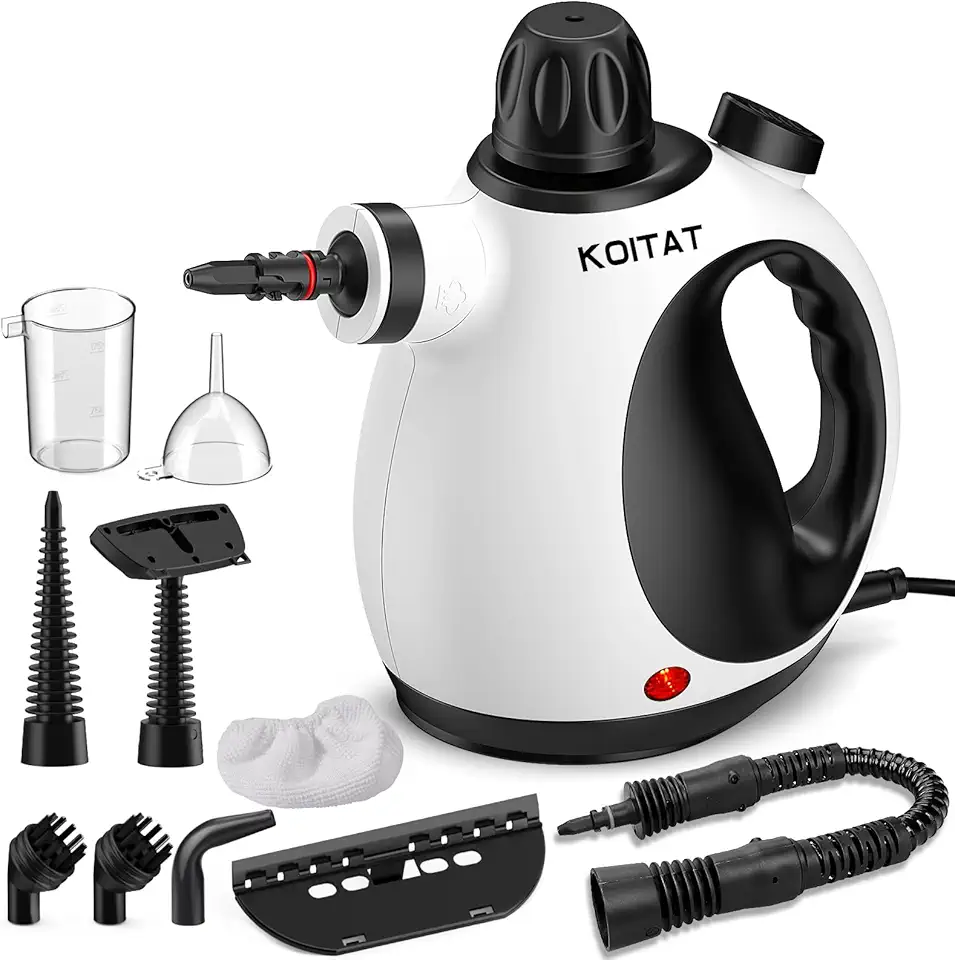
Portable Steam Cleaner, Hand Held steamers for cleaning house, Home Multi Purpose-10-Piece Accessory Kit for Sofa,Carpets,Upholstery,Car,Floor,Bathroom,Mattress and More

KLONA Handheld Steam Cleaner, Steam Cleaner for Home with 10 Accessory Kit, Multipurpose Portable Upholstery Steamer Cleaning with Safety Lock to Remove Grime, Grease, and More

Rib Prep Pro Stainless Steel Rib Membrane Remover Tool, Professional BBQ Rib Skinner and Catfish Skinner Pliers, Kitchen/Grill Gadget Kit for BBQ Rib Prep, Dishwasher Safe BBQ Accessory
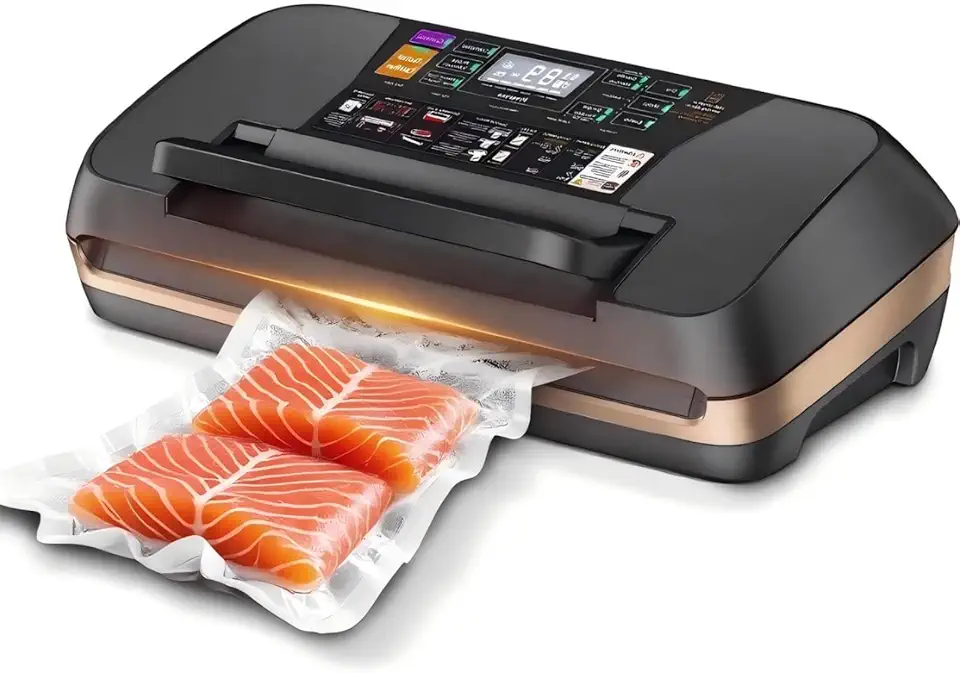
95 kPa Vacuum Sealer Machine, 10-IN-1 Modes Powerful Full Automatic Food Saver Vacuum Sealer with Cutter,1 Bag Roll,10 Pre-cut Bags and Accessory Hose Fully Starter Kits
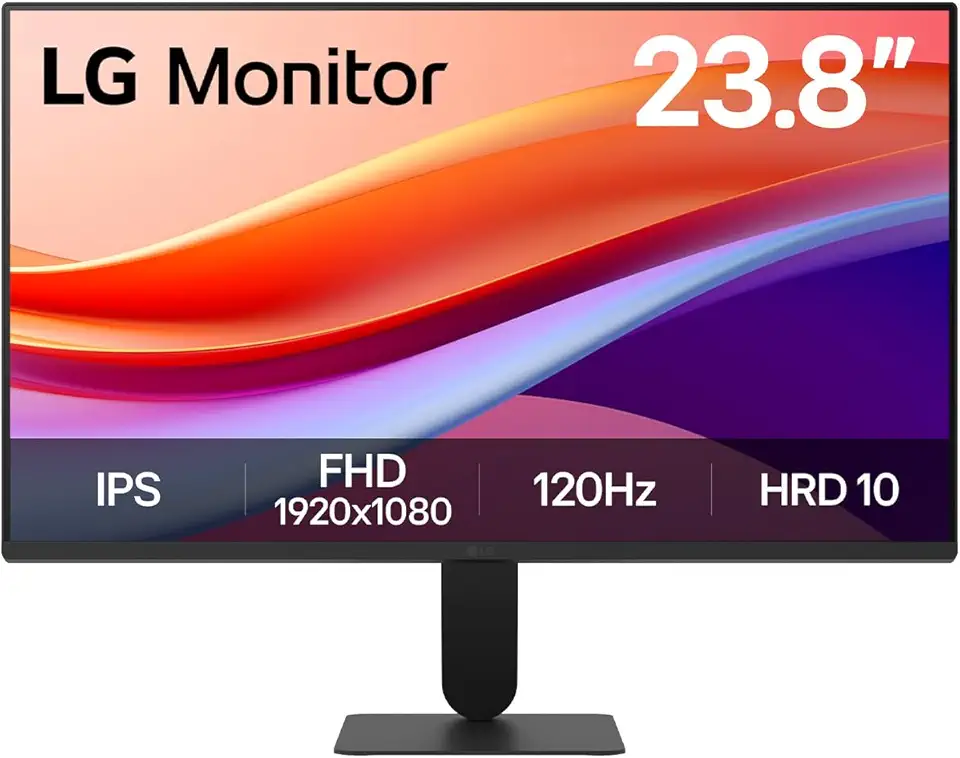
LG 24U411A-B 23.8" FHD (1920x1080) IPS Display Computer Monitor, 120Hz Refresh Rate, sRGB 99% (Typ.), USB-C, Reader Mode & Flicker Safe, Dynamic Action Sync, Black Stabilizer, Slim Stand Base, Black

Soctone Telescoping Ladder A Frame 12.5 Ft Compact Aluminum Extension Ladder, Portable Telescopic RV Ladder for Camper Trips Motorhome with Tool Platform and Stabilizer Bar, 150 Kg Capacity

Soctone Telescoping Ladder A Frame, 16.5 Ft Compact Aluminum Extension Ladder, Telescopic RV Ladder for Camper Trips Motorhome with Tool Platform and Stabilizer Bar, 330 lb Capacity, Black

Telescoping Aluminum Ladder 16.5 FT Dual Purpose With Stabilizer - Adjustable Compact Step Climb for Household, RV, Outdoor Work - 330lb Load Capacity (2.5M+2.5M)
NEEWER Advanced 18 inch LED Ring Light for Phone, LCD Touch Screen, 2.4G Remote Lights Control, 3200-5600K, Tripod Light for iPhone Action Camera, for Studio Makeup TikTok YouTube Video Salon (Black)
NEEWER Zf Handgrip L Shape Grip for Nikon Z f, Ultra Thin Retro Formfitting Camera Mounting Baseplate with Handle & Aluminum Shutter Button Cap, Compatible with Arca Swiss Tripod Fluid Head, CA073
NEEWER CA076 Zfc Handgrip L Shape Grip for Nikon Z fc, Ultra Thin Retro Formfitting Camera Mounting Baseplate with Handle/Brass Shutter Button, Compatible with Arca Swiss Tripod Fluid Head, Black
