How to Scan to PDF on iPhone - Scan Documents & Make PDF on iPhone


Gauging Gadgets
@gauginggadgetsAbout
Welcome to Gauging Gadgets. Expect awesome product reviews, tech tutorials, and DIY lessons. I have a passion for technology and gadgets and love to share that with the world. Please enjoy! Disclosure: Some of the links in the description of videos on this channel are affiliate links. This mean, as an Amazon Associate I earns a small commission from qualifying purchases through these links. This helps support the channel and allows us to continue to make videos like this. Thank you for the support!
Latest Posts
No results found. Try different keywords.
Video Description
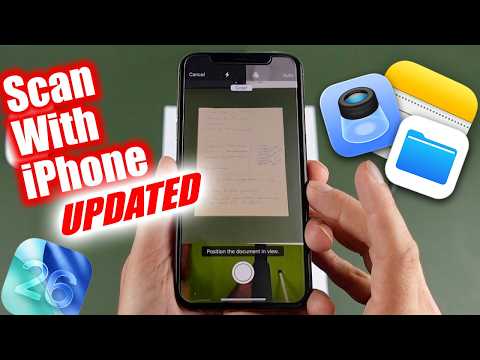
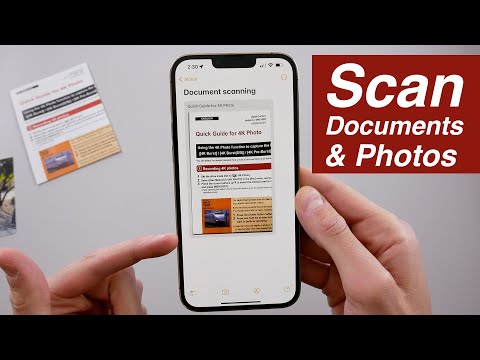
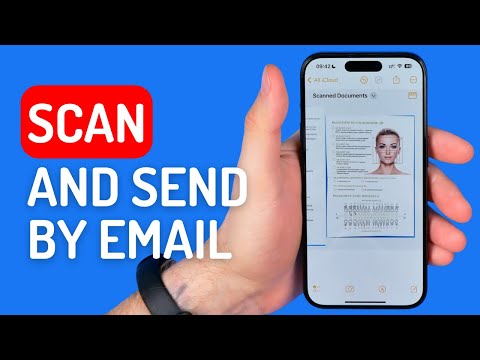
How to scan to PDF on iPhone? In this tutorial, I show you how to scan documents and make PDFs on an iPhone. This means you can scan signed documents and then make them into a PDF file. Scanning to PDF on an iPhone is easy and creates a great looking, high resolution scan. Let me know in the comments if you have any questions while you scan to PDF on iPhone. More iPhone Tips & Tutorials: https://www.youtube.com/playlist?list=PL8griS8Ww-KmREF3bINNNJMuL6mq61LqS How to Send a Fax from iPhone: https://youtu.be/i3w5WTTXW0U How to Sign a PDF on iPhone: https://youtu.be/eNotP5BTAU8 Follow the steps below to scan documents to make PDFs on iPhone: 1. Open the Notes app on your iPhone. 2. Create a new note. 3. Select the camera icon in the bottom menu of the notes app and select Scan Documents. 4. The camera will now open on your iPhone. Hover the camera over the document so that the whole document is captured by the camera. Select the button on the screen to capture the document. 5. If needed, correct the scan by dragging the edges. Then select keep scan. 6. Capture more pages if needed. Once completed select Save. 7. Long press the scan in the note then select Share. 8. You can now save the PDF to your phone or send it. #iPhone #PDF #iPad Disclaimer: Some of the links in this description are affiliate links. This mean Gauging Gadgets earns a small commission from qualifying purchases through these links. This helps support the channel and allows us to continue to make videos like this. Thank you for the support! 😀 HAPPY WITH THE VIDEO? 😀 SUBSCRIBE NOW! CLICK HERE - https://youtube.com/c/gauginggadgets?sub_confirmation=1 SEND ME A TIP! - https://www.paypal.me/GaugingGadgets FOLLOW ME! BLOG: https://GaugingGadgets.com FACEBOOK - http://fb.me/GaugingGadgets TWITTER - http://twitter.com/GaugingGadgets REDDIT - https://www.reddit.com/r/GaugingGadgets/ INSTAGRAM - https://instagram.com/GaugingGadgets/ TWITCH - https://www.twitch.tv/GaugingGadgets Learn How to Crochet: https://www.youtube.com/c/CrochetWithJulie HOW DO I DO IT? (Paid Links) TubeBuddy YouTube Toolkit: https://www.tubebuddy.com/gauginggadgets/yt StreamYard Livestreaming Tool: https://geni.us/streamyardyt Check out My Amazon Storefront: https://amzn.to/44RF2Iw My YouTube Setup: https://gauginggadgets.com/youtube-setup/ Lenovo Legion 5-15IMH05H: https://geni.us/Legion5 Turtle Beach Elite Pro 2 + SuperAmp Pro: https://geni.us/TurtleBeachEP2 700W Lighting Kit - https://geni.us/LightingKit Blue Yeti USB Microphone - https://geni.us/USBMic Logitech C920 Webcam - https://geni.us/HDWebCam Cell Phone - Pixel 2 XL - https://geni.us/FilmingPhone Vanguard VS-82 Table Tripod - https://geni.us/VS-82
You May Also Like










Essential Kitchen Tools for Perfect Chicken Parmesan
AI-recommended products based on this video
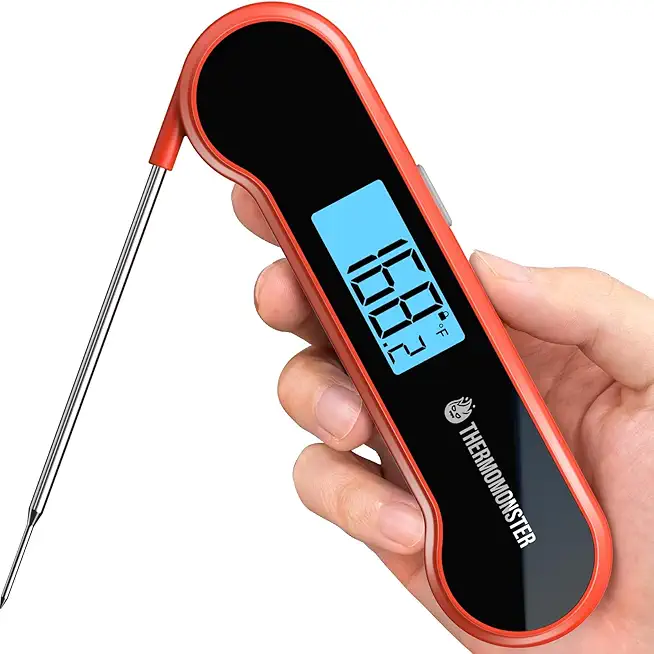
0.5 Sec Instant Read Meat Thermometer Digital with ±0.5℉ Precision, Food Thermometer for Cooking Kitchen Gadgets, Oven Grill Candy BBQ Essentials Accessories, Gifts for Him Dad Men Birthday, Red

KORCCI Suction Cup Hooks 12Pack - Max Load 10LB, 1.77Inch Clear Medium Suction Cups, No Trace, Reusable & Removable, Stainless Steel Hooks, for Tile, Glass, Window, Shower, Kitchen, Bathroom
