macOS Print Center Walkthrough - An essential utility if you print!


Hands-On Apple
View ChannelAbout
Hands-On Apple explores and explains the Mac — and beyond! From clever Terminal commands to little-known iOS settings, Mikah Sargent shares all the best tips and tricks for your Mac, iPad, iPhone, and Apple Watch. You'll get all the details on Apple's apps and the best apps in the App Store, you'll learn about awesome accessories for your Apple devices, and you'll explore updates to Apple's operating systems — including iOS, macOS, iPadOS, and watchOS. Hands-On Apple is your one-stop shop for Apple know-how. You can join Club TWiT for $10 per month and get ad-free audio and video podcast feeds for all our shows plus everything else the club offers...or get just this podcast ad-free for $5 per month. https://twit.tv/clubtwit New episodes every Thursday.
Latest Posts


Video Description
In this episode of Hands-On Mac, Mikah Sargent explores the Print Center utility in macOS - an essential but often overlooked tool for managing printers and print jobs. Mikah gives a comprehensive walkthrough of the app's features, showing how it can help troubleshoot printer issues and manage your printing needs without requiring bloated third-party software. Accessing Print Center - Mikah demonstrates multiple ways to open the utility, including using Spotlight (Command+Space), the menu bar search icon, or navigating through Finder to Applications - Utilities Viewing connected printers - The sidebar displays all connected printers with status indicators Adding new printers - Mikah shows how to add printers using the plus icon, explaining the three connection methods Connection protocols - AirPrint is recommended when available as it makes the printer accessible across all Apple devices, not just Macs Printer management options - The interface allows pausing print jobs, viewing detailed printer information, and checking supply levels for ink or toner Scanner integration - For multifunction printers, Print Center provides access to the scanning functionality through the Image Capture app Right-click menu options - Users can make a printer the default, add it to the Dock for quick access, or remove and re-add printers for troubleshooting System Settings integration - The Printers & Scanners section in System Settings provides similar functionality but with additional options like printing test pages Job history tracking - Print Center keeps records of completed print jobs, helpful for remembering which printer was used in multi-printer environments Printer webpage access - Mikah highlights how Print Center provides direct links to printer web interfaces, avoiding the need to install bloated manufacturer software Manage printers and print jobs - Apple Support - https://support.apple.com/guide/mac-help/manage-printers-print-jobs-center-mac-mchl33bd189d/mac Host: Mikah Sargent Hands-On Mac episode 170 More Info: https://twit.tv/shows/hands-on-mac/episodes/170 Download or subscribe to Hands-On Mac at https://twit.tv/shows/hands-on-mac Want access to the ad-free video and exclusive features? Become a member of Club TWiT today! https://twit.tv/clubtwit Club TWiT members can discuss this episode and leave feedback in the Club TWiT Discord. Products we recommend: https://www.amazon.com/shop/twitnetcastnetwork TWiT may earn commissions on certain products. Follow us: Website: https://twit.tv/ Bluesky: https://bsky.app/profile/twit.tv Mastodon: https://mastodon.social/@TWiT Facebook: https://www.facebook.com/TWiTNetwork Instagram: https://www.instagram.com/twit.tv/ X (Twitter): https://x.com/TWiT TikTok: https://www.tiktok.com/@twittok LinkedIn: https://www.linkedin.com/company/twit-llc About us: TWiT.tv is a technology podcasting network located in the San Francisco Bay Area with the #1 ranked technology podcast This Week in Tech hosted by Leo Laporte. Every week we produce dozens of hours of content on a variety of programs including Tech News Weekly, MacBreak Weekly, Windows Weekly, Security Now, Intelligent Machines, and more.
Essential macOS Printing Tools
AI-recommended products based on this video

Original HP 63 Black/Tri-color Ink (2-pack) | Works with HP DeskJet 1112, 2130, 3630 Series; HP ENVY 4510, 4520 Series; HP OfficeJet 3830, 4650, 5200 Series | Eligible for Instant Ink | L0R46AN

Original HP 63 Black Ink Cartridge | Works with HP DeskJet 1112, 2130, 3630 Series; HP ENVY 4510, 4520 Series; HP OfficeJet 3830, 4650, 5200 Series | Eligible for Instant Ink | F6U62AN ECOLOGO

HP 902XL | Ink Cartridge | Black | Works with HP OfficeJet 6900 Series, HP OfficeJet Pro 6900 Series | T6M14AN ECOLOGO
HP 902XL | Ink Cartridge | Black | Works with HP OfficeJet 6900 Series, HP OfficeJet Pro 6900 Series | T6M14AN ECOLOGO
Original HP 63 Black Ink Cartridge | Works with HP DeskJet 1112, 2130, 3630 Series; HP ENVY 4510, 4520 Series; HP OfficeJet 3830, 4650, 5200 Series | Eligible for Instant Ink | F6U62AN ECOLOGO

Original HP 65 Black Ink Cartridge | Works with HP AMP 100 Series, HP DeskJet 2600, 3700, 5000 Series, HP ENVY 5000 Series | Eligible for Instant Ink | N9K02AN

Amazon Basics 3-Button USB Wired Computer Mouse (Black), 1-Pack

Amazon Basics 256GB Ultra Fast USB 3.1 High Capacity Flash Drive for Fast Data Transfer and Storage, Black
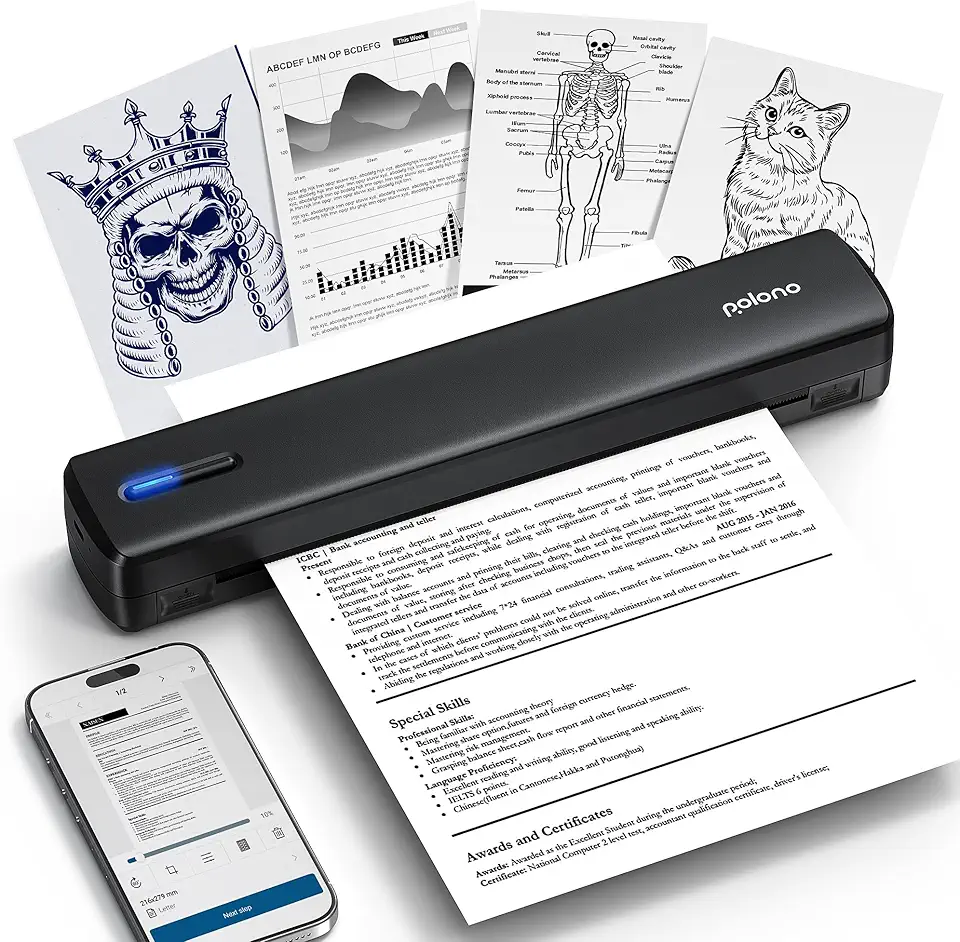
POLONO Portable Printer, D810 Inkless Bluetooth Thermal Printer Wireless for Travel, Compatible with iOS, Android, Laptop, Supports 8.5"x11" US Letter for Office, Car, Home, Black

Wireless Print Server for USB Printer (NOT Plug&Play), 2 Port USB Print Server, Convert Wired Printer to Wireless WiFi Ethernet Networking - Windows Mac Linux Compliant - CR202
