OBS For Brand New Streamers (Creating Scenes, Adding Alerts, and MORE)

About
No channel description available.
Latest Posts

Video Description
Installing OBS can be confusing, and streaming isn’t meant to be confusing, it is meant to be fun, right? Today you’ll go from having nothing setup to having an awesome overlay set up, and knowing how to create scenes, add alerts, widgets, and more in under 20 minutes! 👑 Check out Eljay Live Right now: http://bit.ly/eljayemtwitch ❗ Full Playlist of OBS Guides for Alerts, Labels, Stream Settings, and More: https://youtube.com/playlist?list=PL-FyuLA6vLphQx5JKHOX8sHn5-1kZU9oX 🔴 Download FREE Animated Overlays From Our Discord Now: https://bit.ly/FREEStreamOverlays How To Add Sources To OBS: On the left we have Scenes, as I said, you'll make scenes for different purposes, for example, you'll make a game scene, so we right-click, rename the Game scene. Now I might be setting up a gaming scene, but I’ll cover everything you need to know to build any scene you want. In the middle we have Sources, sources are all of your media that are in the Scene you have selected. Right now it is empty, but if we click this plus sign we can add sources such as a game capture, which you'll need in your Gaming Scene, this lets you capture your game and display it in OBS. Anything you want to add, you'll do it with this plus sign, that could be video graphics, or it could be still images, or it could be any of these dozens of widgets you’ll add with browser sources. Lets start with the webcam, lets click the plus, click add Video Capture Device, we will select our webcam, and then resize it down by clicking the corner, and dragging. Now the Source List isn't a random order, it is actually layered, imagine the bottom layer is behind everything else, so if I drag my webcam below the game capture, it is hidden, if you can’t see a source, its worth confirming its at the right place of the list. Now I want to add my support bars that the name of my latest follower will appear in, so I will click the + and I can either click Image if my support bar graphic isn't animated, aka its a still image, or I can click Media source if it is an animation or video. 🕘 Timestamps: 0:00 How To Setup OBS Studio for brand new streamers 0:49 A Quick Tour Of OBS Studio 2:30 How To Add Sources To OBS Studio 2:45 How To Add Game Capture To OBS 3:16 How To Setup Twitch Alerts In OBS 3:55 How To Add A Webcam To OBS 4:28 How To Add Latest Follower Stream Label To OBS 7:38 How To Remove Sources From OBS 7:45 How To Group Source In OBS 8:50 How To Crop Webcams In OBS 9:14 How to Add Twitch Chat To OBS with StreamElements 10:15 How To Add New Scenes To OBS 10:35 How To Use Studio Mode In OBS 11:50 How To Setup Stinger Transitions IN OBS 13:30 Where to download FREE Animated Twitch and Stream Overlays 14:13 How To Setup Mics and Audio In OBS For Beginners 17:05 How To Setup Event Lists And Chat Docks In OBS How To Install Twitch Alerts Into OBS To install an alerts into OBS, you will need to complete the following: Step 1: From within OBS, you will need to click the + button and add a browser source. Step 2: Login to Twitch, and go to the Twitch dashboard, and then select alerts. Step 3: Make a new alert box, and copy the browser source of the alerts in the bottom right. Step 4: Paste the browser source url into OBS, and then sent a Test alert from the Alerts dashboard to confirm it's working. How to setup Stinger Transitions in OBS Let’s add some polish to our transitions between scenes. So let’s quickly add an animation to this transition. So head to the Scene Transition section, click the + button, change it to Stinger, and now you’ll want to find the stinger, remember every graphic in todays video is downloadable in the Stream scheme discord, import your video file, you need to use a webm video stinger, select frame, transition point 30 is what fits the animation I am using, but you can adjust when the transition point, moving it further and back until it fits yours, hit done. Now select the new stinger as your default with this circle, hit done, and now click between your two scenes. Ta-dah, you’ve got a transition! The style of this video is similar to Alpha Gaming and Gaming Careers in parts. A large influence on this series has come from content creators like Wild4games and The Video Nerd. 🎬Watch our most recent videos: https://bit.ly/RecentStreamVids 🎬 Playlists You Might Like: Guides and Tutorials: https://bit.ly/StreamGuidesPlaylist --------------------------------SOCIAL-------------------------------- 👥Facebook: https://bit.ly/StreamSchemeFB 💬Website: https://bit.ly/Streamscheme 🐦Go force Eljay to use Twitter: http://bit.ly/EljaysTweets #Streaming #OBS #Twitch
Stream Like a Pro Today
AI-recommended products based on this video

Carrying Case for Nintendo Switch, Soft Switch Case, Switch Screen Protector, Thumb Grips Caps, Switch Accessories Protective Case for Switch Console, Portable Travel Carry Cases for Switch, Green

for Samsung Galaxy S25 Edge Case with Screen Protector, Samsung S25 Edge Phone case,Slim Fit Military Grade Heavy Duty Rugged Protective Bumper Cover for Galaxy s25 Edge 5G (Green, S25 Edge)

Asuwish Phone Case for Samsung Galaxy S25 Plus S25+ 5G Wallet Cover With Tempered Glass Screen Protector and Crossbody Wrist Strap Flip Zipper Card Holder Cell S25plus 25S + S 25 25+ Women Girls Green

HOMIEE HOMIEE 15.6-Inch Laptop Backpack, High-Capacity Backpack for Men Women USB Charging Port Travel/Business/College Backpack, Blue
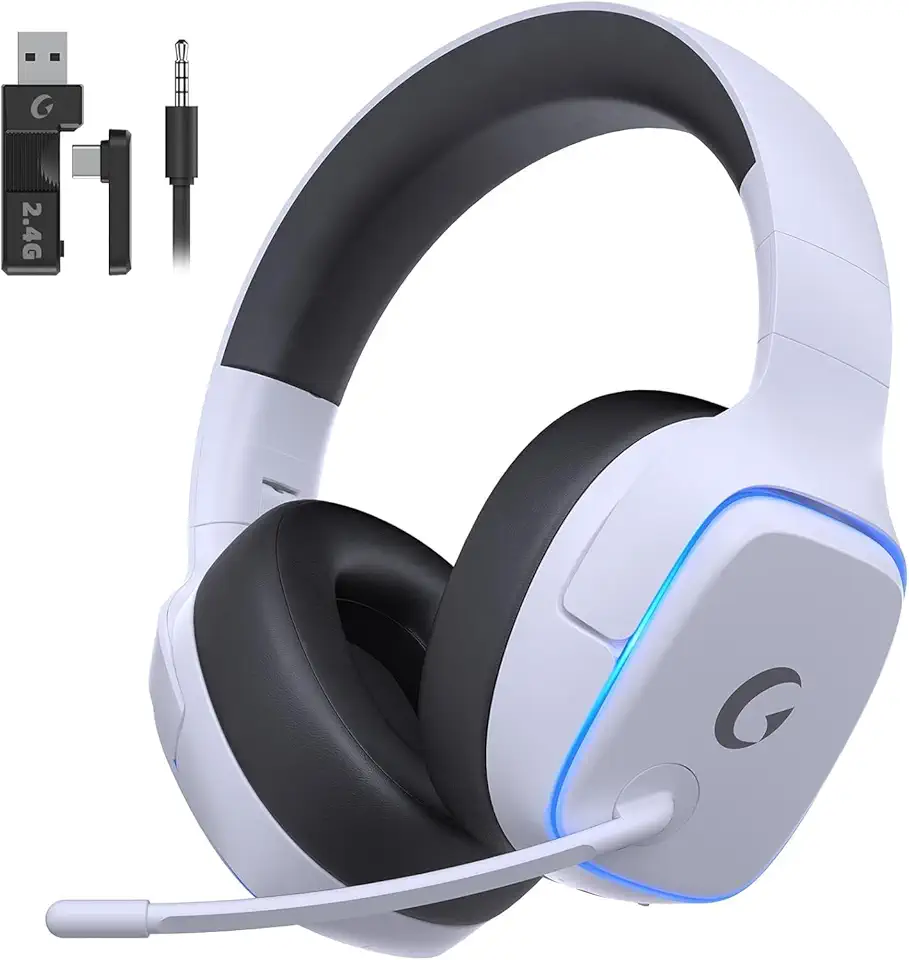
2.4GHz Wireless Gaming Headsets for PS5, PS4, PC, Switch - Bluetooth 5.3 Gaming Headphones with Noise Canceling Mic, 7.1 Surround Sound, 70H Battery, Blue Lighting - White

RAOYI 5Pack 64GB USB Flash Drive USB Stick USB 2.0 Memory Stick Slide Retractable Thumb Drive 64G USB Drive USB Key for Data Storage (Black Red Blue Green Purple)

Asus ZenScreen 16” Portable USB Monitor (MB169CK) - Full HD, IPS, Dual USB-C, Eye Care, Flicker Free, Blue Light Filter, Anti-Glare Surface, 360° Kickstand, 3 yr Warranty
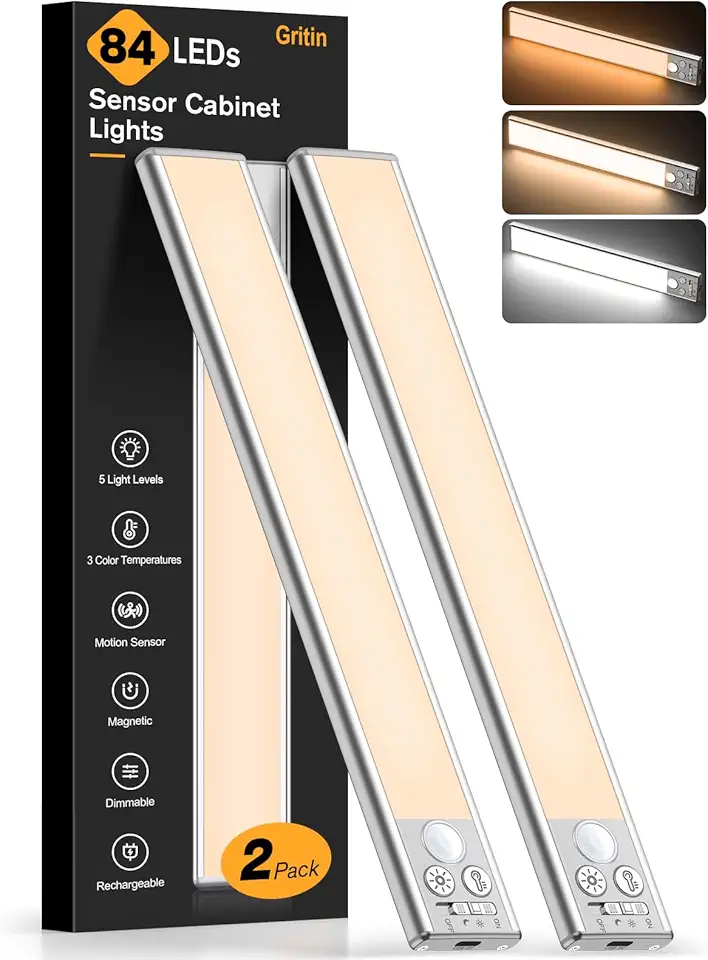
Gritin Under Cabinet Lighting Rechargeable-84 LED Super Bright,3-Color& 5-Brightness,4 Modes,Motion Sensor, Long Lasting- Easy Installation Strong Magnetic Wireless Under Cabinet Closet Lights-2 Pack

ChicZhiNest Queen White Metal Bed Frame with USB Charging Station, LED Ambient Lighting, and Wooden Storage Headboard - Includes Under-Bed Storage, No Box Spring Needed, Noise Free, Easy to Assemble

ChicZhiNest Queen Size Black Metal Bed Frame with USB Charging Station, LED Ambient Lighting, and Wooden Storage Headboard - Includes Under-Bed Storage, No Box Spring Needed, Noise Free, Easy Assembly

Low Voltage Landscape Lighting 6 Pack, 12V LED Outdoor Landscape Spotlights Outside Graden Pathway Lights, Plug in Spot Lights with Waterproof Transformer for House Yard Flag Tree Lawn Decor

Razer BlackShark V2 X Gaming Headset: 50mm Drivers - Cardioid Mic - Memory Foam Cushion - Lightweight- Comfortable, Noise Isolating Earcups - for PC, PS4, PS5, Switch - 3.5mm Audio Jack - Black ECOLOGO

230W Charger Compatible with Razer Blade 14” 15” 16" 17” (2025-2018) RZ09 RTX-3060/3070/3080/4060/4070 Gaming Laptop RC30-0530 RC30-0238 RC30-0248 Replacement Power Adapter
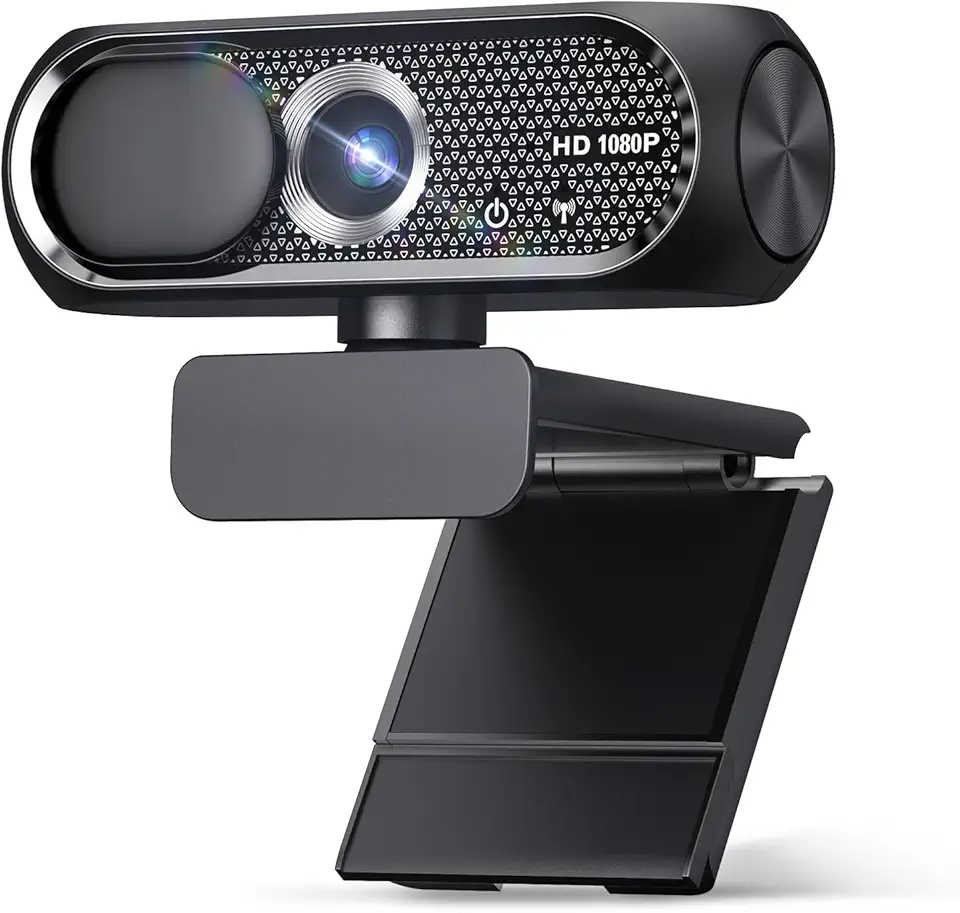
Shcngqio 1080P Full HD Webcam with Privacy Cover, Wide Angle Lens, Active Light Correction, Plug and Play USB Webcam for PC, Desktop,Laptop (Black)

TRAUSI HD Webcam with Microphone, Noise Cancellation, Privacy Cover, Wide-Angle Lens, Auto Light Correction, Plug & Play USB Webcam for Laptop, Desktop, PC, Mac, Zoom, Skype, Streaming (1080P, Black)
TRAUSI 1080P HD Webcam with Microphone, Noise Cancellation, Privacy Cover, Wide-Angle Lens, Auto Light Correction, Plug & Play USB Webcam for Laptop, Desktop, PC, Mac, Zoom, Skype, Streaming Black
