Privacy Hack: How to Protect Your Search History from ISPs


NetWork From Home
View ChannelAbout
At NetWork from Home, my goal is to help everyone get the most out of their home internet connections. I will break down the technical concepts surrounding home networks so you are comfortable making decisions that maximize your internet connection and allow you to safely access the internet.
Latest Posts

Video Description
In this video, I walk through the steps you need to take to change the DNS settings on your router, a laptop, and a mobile phone. For context on how your ISP can spy on your search history, check out the previous video I made: https://youtu.be/pZAeuFSuRHA To see how you can encrypt your DNS requests, check out this video: https://youtu.be/OhF2bBb4RxU For a list of free DNS servers that you can choose for your home network, check out this article: https://www.lifewire.com/free-and-public-dns-servers-2626062 For more content on similar topics, check out my YouTube channel: https://www.youtube.com/channel/UCs-hXDMwqs1Ri9Yh9QRgaqQ If you would like to read about other ways to improve your home network, check out my blog: https://www.network-from-home.com 0:51 Which DNS servers should you use? 2:05 How to change your router’s DNS settings 4:42 How to change the DNS settings of mobile devices How to change the DNS settings of your devices Changing the DNS settings of your router will give you the most bang for your buck from an administrative standpoint. That’s because any devices connected to your router will use your router’s DNS settings by default. To change your router’s DNS settings, you need to log in to your router’s administrative settings. The DNS settings will most likely be located in the Advanced settings section under “Internet”. Changing the DNS settings of your router will cover all the devices that always connect to the internet through your router. For your mobile devices, however, you need to take further action. That’s because your mobile devices won’t always access the internet through the router in your home. For mobile devices like a laptop or a mobile phone, you need to change the local DNS settings on these devices. That way, when these devices are outside of your home network and connecting to the internet, they’ll still use the DNS servers that you choose regardless of the DNS settings on the router. To change the DNS settings of your mobile devices, you’ll need to go into their settings and change the DNS servers that they’re using. These settings are usually found in the network settings for the device. Once you’ve updated your router and mobile devices with the DNS servers of your choice, your ISP won’t be able to see what websites you’re accessing. Conclusion If you have any questions about how to change the DNS settings of your devices, please leave a comment below.
Secure Your Browsing Now
AI-recommended products based on this video

TP-Link AX1500 WiFi 6 Travel Router (TL-WR1502X) – Pocket-Sized, Dual-Band, USB-C Powered, VPN Support (OpenVPN/WireGuard), USB Tethering, Gigabit Ports, Multi-Mode, Hotel & Travel Ready
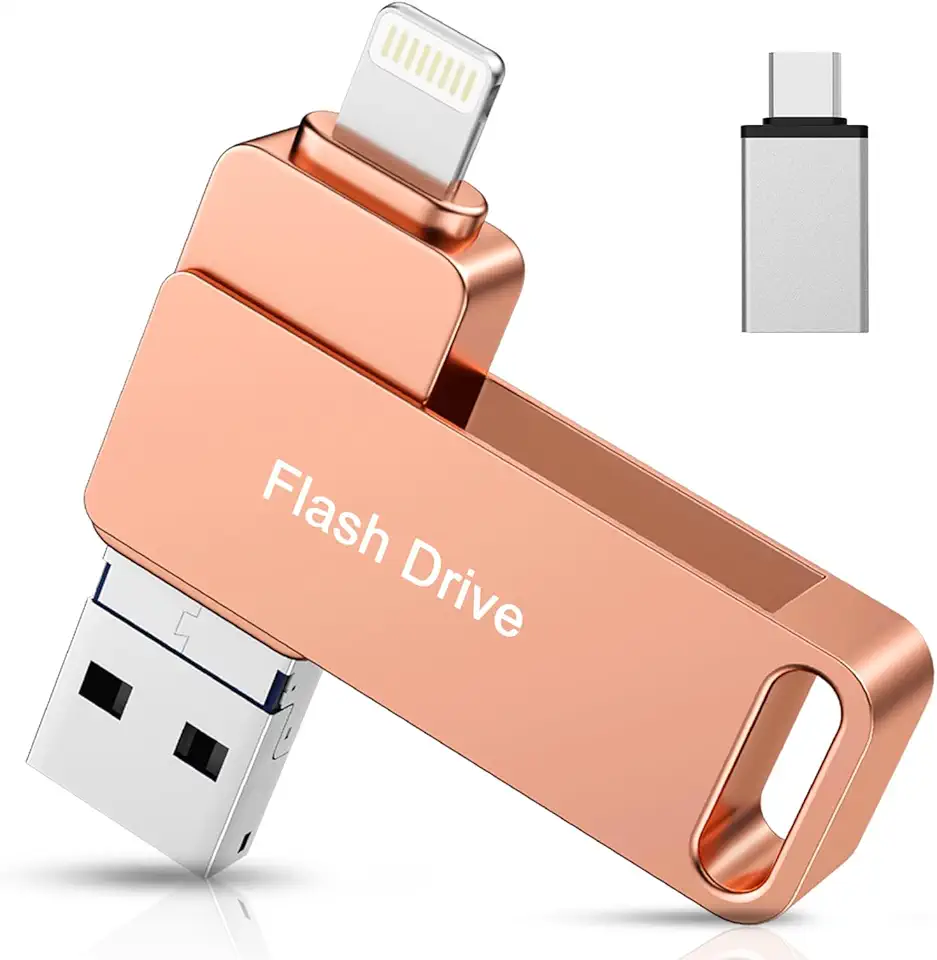
Apple MFi Certified iPhone Flash Drive, Photo Stick,iPhone Memory Stick 512GB, USB Thumb Drive for Photos Videos Transfer, High Speed Jump Drive Compatible for iPhone/iPad/Android/PC Pink

Vansuny 128GB USB C Flash Drive 2 in 1 OTG USB 3.0 + USB C Memory Stick with Keychain Dual Type C USB Thumb Drive Photo Stick Jump Drive for Smartphone, Computers, MacBook, Tablets, PC

USB Stick 64GB, Aiibe 64GB USB Flash Drive 64GB USB 2.0 Memory Stick Thumb Drive Data Storage Jump Drive for Laptop(64G, Green)

Aiibe 5 Pack 64 GB Flash Drive USB Sticks Thumb Drive 64 GB USB 2.0 Flash Disk Jump Drive Multi Pack USB Stick Pack Zip Drives 64GB with Led Light (5 Colors,64gb)
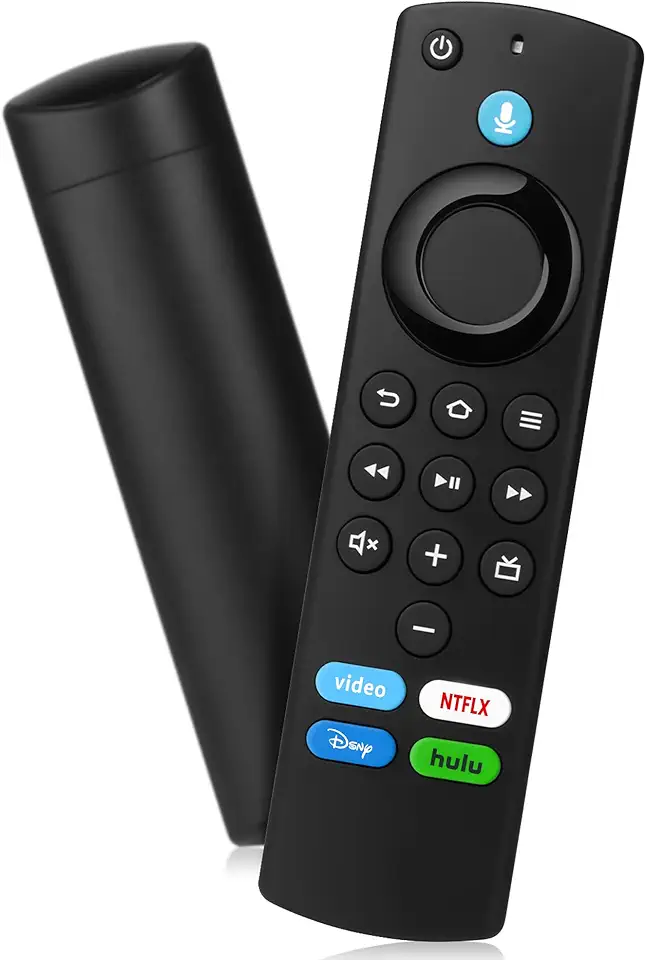
Replacement Remote Control with Voice Function Fit for Fire AMZ Smart TVs Stick(2nd Gen, 3rd Gen, Lite, 4K,4K Max),TVs Cube,for Smart TV (3rd Gen),and for Insignia/Toshiba/Pioneer/Omni Smart TVs

GTUOXIES 32 Inch Incell Touch Screen Monitor, TS32A2 FHD 1920p, Portable Smart TV, Screen Casting, Built-in Webcam and Battery, 90 Degree Swivel, Full Movement, 60Hz Refresh Rate...

TAGRY Bluetooth Headphones True Wireless Earbuds 60H Playback LED Power Display Earphones with Wireless Charging Case IPX5 Waterproof in-Ear Earbuds with Mic for TV Smart Phone Laptop Computer Sports
