How to fix Blue Screen of Death | 8 ways and reasons BSoD appears


CoolTechZone
@cooltechzoneAbout
Serving up fun, approachable tech and cybersecurity tips with zero snobbery, a dash of sass, and regular cameos from my cat, Mittens!
Latest Posts




Video Description
Fixing the Blue Screen of Death - and getting additional PC protection: ✅ Bitdefender - https://ctzone.link/bitdefender_deal_8/ ✅ NordVPN Threat Protection - https://ctzone.link/nordvpn_deal_8/ “Your PC ran into a problem and needs to restart”. Any Windows user has seen this screen and read those words at least once in their life. Most of these users still have no clue what to do about it though. I’ve seen the infamous Blue Screen of Death tons of times, and I will show you 8 steps to fixing almost any bluescreen, all you’ve gotta do is stick around. ----------------------------------------------- 📢Important notes! ----------------------------------------------- First: the Blue Screen of Death is essentially a “stop” error, which happens whenever Windows encounters an issue it can’t fix without restarting. Second: keep in mind that no version of Windows is safe from BSoD, on Windows 10 blue screen is just as much of an issue as on Windows 7 and below. And lastly, in order to know how to fix Blue Screen of Death, you need to know what caused it. That’s where the error code that is always included with the bluescreen presents itself. Always try to save this bad boy. ----------------------------------------------- 💻Remove additional hardware ----------------------------------------------- Okay, here goes the first reason for a BSoD - Hardware failure.If you’ve just added some new hardware, such as an SSD drive, RAM stick or even something external like a printer, the incompatibility could cause the blue screen of doom to appear. How to fix that? Well, try removing the hardware you just installed and booting without it. If everything works - we’ve got ourselves the culprit. ----------------------------------------------- 🔧Using the Windows Safe Mode ----------------------------------------------- For some of the next troubleshooting moves I’m about to show, you need to know how to boot your PC in safe mode. So, first, you have to turn your PC off, and then on again. While it’s still booting, shut it down. Repeat twice more to enter WinRE - Windows Recovery Environment. In there click Advanced options, then Troubleshoot, Advanced options again, and then Startup settings. Now restart, and once the system is rebooted, press F4 to enable safe mode. ----------------------------------------------- 📩Removing additional software ----------------------------------------------- This might be very useful if you run into incompatible software - the second most common reason behind the Blue screen of destruction. If you’ve just installed a new app, and running it makes the BSoD pop out - well, the reason is clear. But what if your software is in the auto-load queue, and before you have a chance to load your Windows 10, Blue Screen of Death already strikes? That’s where the Safe Mode comes into play - once you boot in Safe Mode, only the most essential software will load, allowing you to clean out the malevolent apps from your PC. ----------------------------------------------- 🔧Fixing hardware compatibility ----------------------------------------------- Sometimes, however, BSoD is caused by an unexpected flaw in hardware, some kind of failure in the memory of your PC, or even the motherboard itself. I usually use the Memory Diagnostic Tool to make sure I know what’s going on since it will give me insights into the state of my RAM. To open this tool, while you are in Safe Mode, press Win+R to open the RUN dialogue box, where you need to type mdsched.exe and press Enter. Click on “Restart now and check for problems”. Your PC will reboot and run a diagnostic test, showing you if there are any memory issues. If you can see some significant problems in your RAM, there might be no other solution but to replace it. #windowsbsod #windows11 #windows10 #windows #bsod #ctz #cooltechzone Affiliate Disclaimer: We are affiliated but not sponsored by any service provider. This means we may receive a small commission when you click on the provided links, however, our reviews are based on independent research and rigorous fact-checking. CoolTechZone is owned by Mediatech, whose investors are the founders of Nord Security, whose products and services we may review.
You May Also Like






Upgrade Your Drone Game
AI-recommended products based on this video
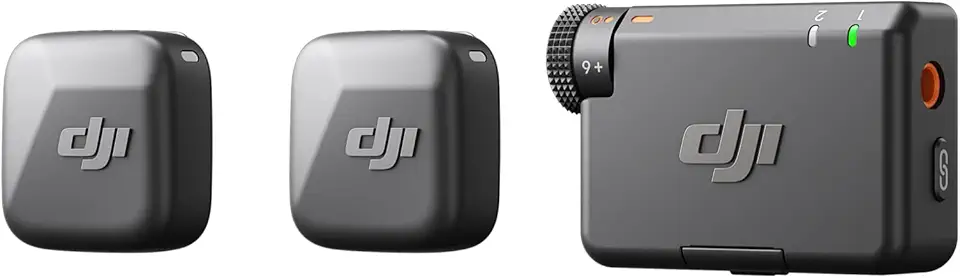
DJI Mic Mini (2 TX + 1 RX), Detail-Rich Audio, Wireless Lavalier Microphone for Camera/Android, 2-Person Vlog, Team Production

SanDisk 64GB Extreme PRO SDXC UHS-I Memory Card - C10, U3, V30, 4K UHD, SD Card - SDSDXXU-064G-GN4IN

SanDisk 128GB Extreme PRO SDXC UHS-I Memory Card - C10, U3, V30, 4K UHD, SD Card - SDSDXXD-128G-GN4IN
DJI Mic Mini (2 TX + 1 RX), Detail-Rich Audio, Wireless Lavalier Microphone for Camera/Android, 2-Person Vlog, Team Production
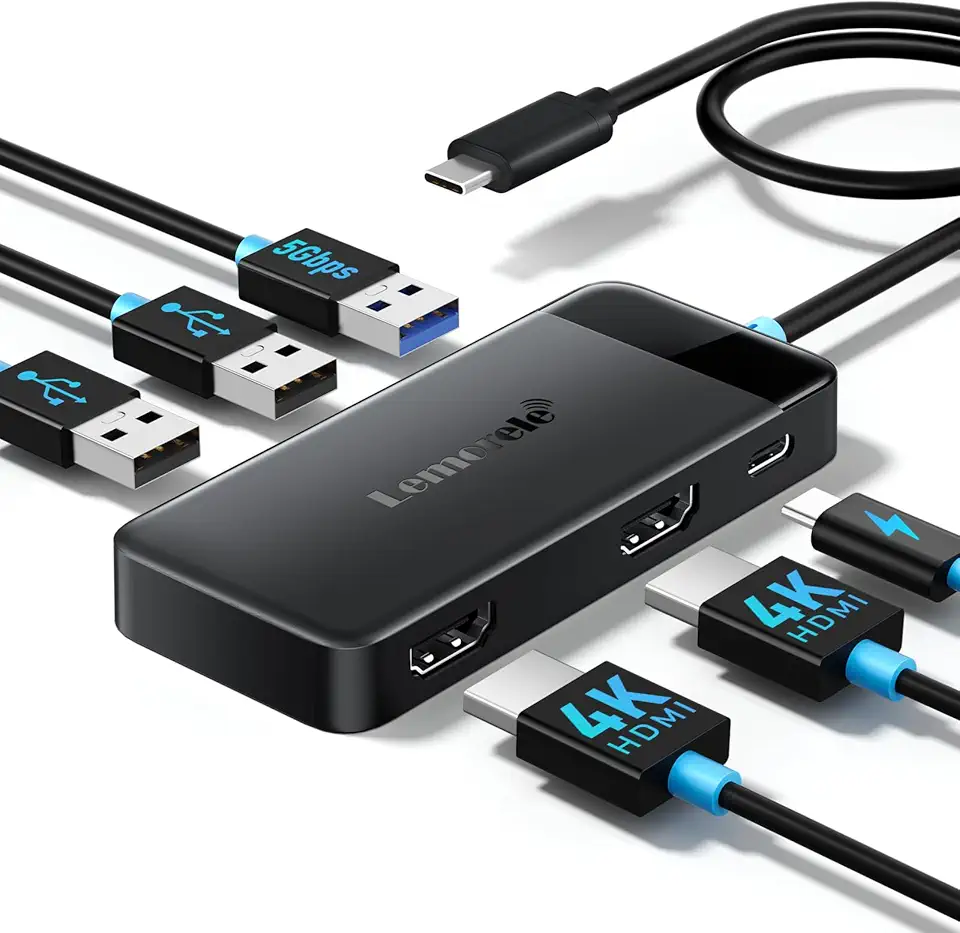
Lemorele Docking Station Dual Monitor, 6 in 1 USB C Hub Multiport Adapter w/2 HDMI 4K, 5Gbps USB3.0 & 2 USB2.0, 100W PD Charging - USB C Dock for Laptop Dell/HP/MacBook/Surface - Plug and Play
DJI Mic Mini (2 TX + 1 RX), Detail-Rich Audio, Wireless Lavalier Microphone for Camera/Android, 2-Person Vlog, Team Production
DJI Mic Mini (2 TX + 1 RX), Detail-Rich Audio, Wireless Lavalier Microphone for Camera/Android, 2-Person Vlog, Team Production
DJI Mic Mini (2 TX + 1 RX), Detail-Rich Audio, Wireless Lavalier Microphone for Camera/Android, 2-Person Vlog, Team Production

SmallRig ZV-E1 Camera Baseplate for Sony ZV-E1, Built-in Cold Shoe Mount and QR Plate (for Arca) Quick Switch Between Tripod and Stabilizer for DJI RS 2 / RSC 2 / RS 3 / RS 3 Pro - 4314

SmallRig Baseplate for Sony Alpha 6700, Bottom Mount Plate Built-in Quick Release Plate for Arca, Supporting Quick Switch Between Tripod and Stabilizer (for DJI RS 2 / RSC 2 / RS 3 / RS 3 Pro) - 4338

NEEWER a6700 L Plate Compatible with Sony Alpha 6700, Quick Switch Aluminum Extendable Side Plate & Anti Twist Baseplate Compatible with Arca Swiss QR System DJI RS 2 RSC 2 RS 3 Pro Gimbals, CA048