How to Stop Sharing Your iPhone Location (Quick & Easy Guide!)


Quick Tutorials
@quick-tutorialsAbout
Short, no-nonsense tech tutorials to for everyday problems. Get step-by-step guides for iPhone, iPad, Mac, Android, Apple Watch, apps, settings, fixes, hidden features, and more. No fluff. No confusion. Just fast answers that help you get things done.



Video Description
Want to stop sharing your iPhone’s location? In this quick tutorial, I’ll show you how to disable location sharing on your iPhone using Find My and Messages. Whether you want to turn off location sharing completely or stop sharing with a specific person, I’ve got you covered! Our favorite setup: • Apple Magic Keyboard: https://amzn.to/486dCA0 • Apple Magic Mouse: https://amzn.to/3Um4CDy • Laptop - MacBook Pro M4: https://amzn.to/3Z9LsTr • Desktop - Mac Mini M4: https://amzn.to/3ADoZEN • Monitor - Apple Studio Display: https://amzn.to/49lAxrj • 2TB SSD Hard drive: https://amzn.to/49trq86 When you purchase through links on our site, we may earn an affiliate commission at no extra cost to you. This helps us continue to create guides like this for our audience. 🔹 Steps to Stop Sharing Location: 1️⃣ Go to Settings - Tap your Apple ID 2️⃣ Select Find My - Share My Location - Toggle it OFF 3️⃣ This disables location sharing for Find My and Messages 4️⃣ If you want to stop sharing with one person, open Find My, tap their name, and select Stop Sharing My Location ✅ Important Notes: • Your friends and family won’t be notified when you stop sharing. • If they check, they’ll see “Location Not Available.” 📌 More iPhone Tips & Tutorials: ➡️ https://www.youtube.com/playlist?list=PLjpV0rtYuMOocaNW7FAg03ENnNmtb8vji 🔔 Subscribe for more iPhone tips! http://youtube.com/@quick-tutorials/?sub_confirmation=1 #iPhone #LocationSharing #iPhoneTips #FindMyiPhone #PrivacyTips








Privacy-Protecting Essentials
AI-recommended products based on this video

HATALKIN Case Compatible with Apple AirTags Case Keychain Air tag Holder Air Tag Key Ring Cases Air Tags Protective Cover Airtag Key Chain Loop Holders Silicone for Luggage Dog Cat Pet Collar 4 Pack
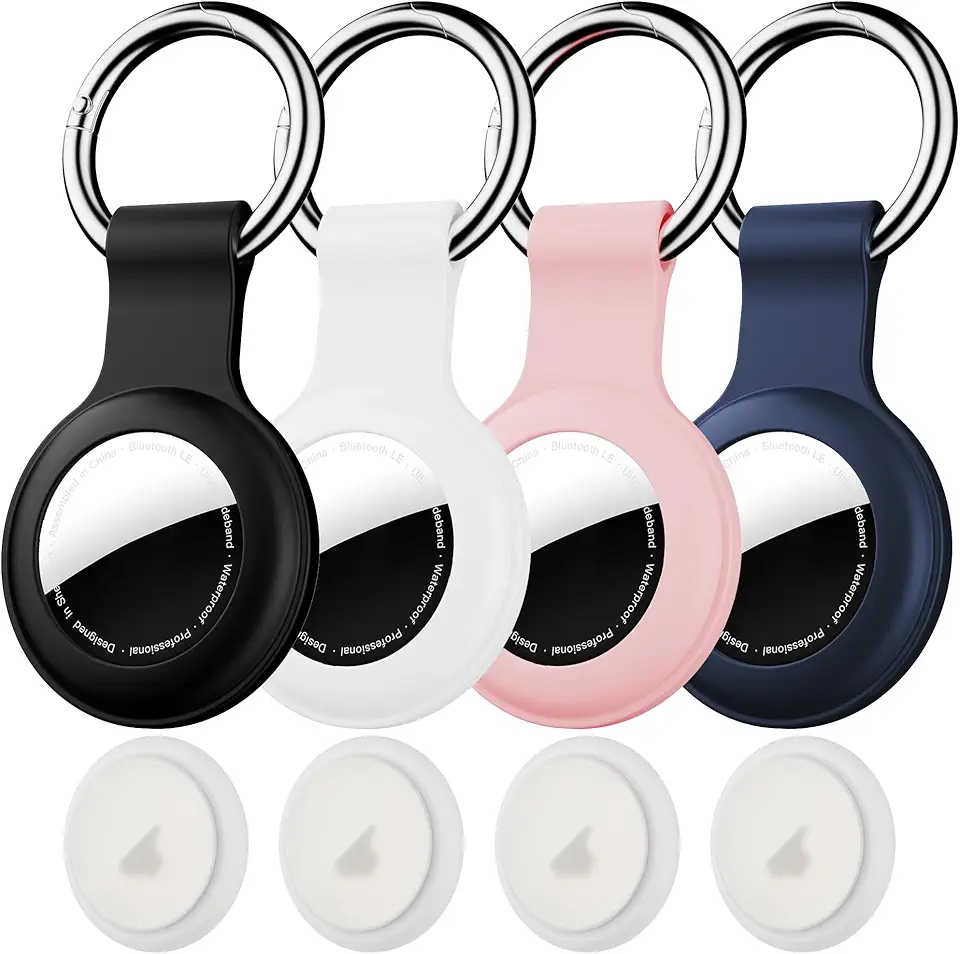
Citymore 4 Pack IPX8 Waterproof for AirTag Keychain,with Soft Silicone AirTags Holder Case Key Ring, Compatible with Apple AirTag for Luggage,Keys, Dog Collar etc

Travel Essentials for Apple Watch Charger, 3 in 2 Multi Fast Charging Cable for iPhone Charger, USB C Cable Cord Compatible with iWatch Ultra(Gray, 4FT)
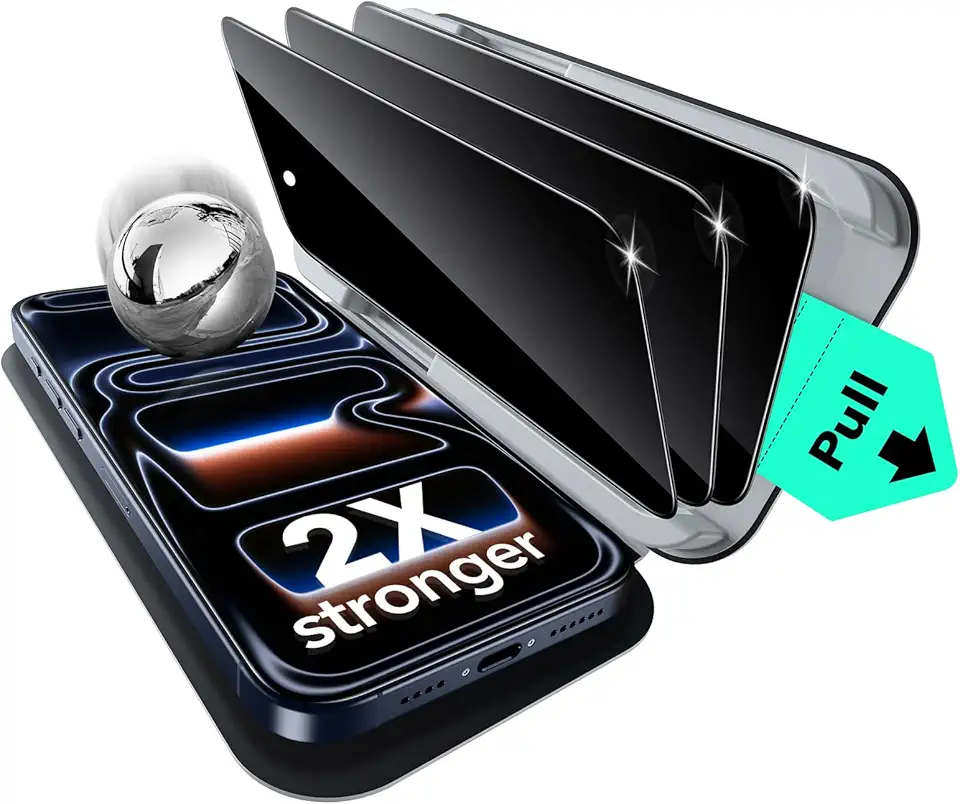
ESR 3 Pack for iPhone 17 Pro Max Privacy Screen Protector, Military Grade Shatterproof, 9H Hardness, Anti-spy Tempered Glass with UltraFit Tray Global Recycled Standard
![Vihibii for iPhone 16 Wallet Case with Card Holder (4 Cards) [RFID Blocking] & Slide Camera Cover & Raised Edges Protect Screen, Shockproof Rugged Phone Case for iPhone 16 6.1" 2024, Blue](https://m.media-amazon.com/images/I/71qCRDVKHBL._AC_UL960_FMwebp_QL65_.jpg)