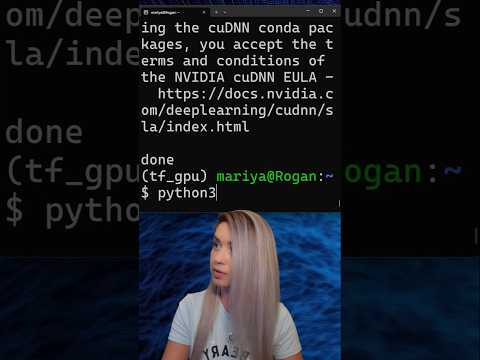
CUDA Simply Explained - GPU vs CPU Parallel Computing for Beginners


Python Simplified
@pythonsimplifiedAbout
Hi everyone! My name is Mariya and I'm a software developer from Sofia, Bulgaria. I film programming tutorials about Computer Science Concepts, GUI Applications, Machine Learning and Artificial Intelligence, Automation and Web Scraping, Data Science and even Math! 🤓 I'm here to help you with your programming journey (in particular - your Python programming journey 😉) and show you how many beautiful and powerful things we can do with code! 💪💪💪




Video Description
In this tutorial, we will talk about CUDA and how it helps us accelerate the speed of our programs. Additionally, we will discuss the difference between processors (CPUs) and graphic cards (GPUs) and how come we can use both to process code. By the end of this video - we will install CUDA and perform a quick speed test comparing the speed of our GPU with the speed of our CPU. We will create 2 extremely large data structures with PyTorch and we will multiply one by the other to test the performance. Specifically, I'll be comparing Nvidia's GeForce RTX 3090 GPU with Intel's i9-12900K 12th-Gen Alder Lake Processor (with DDR5 memory). I'll be posting some more advanced benchmarks in the next few tutorials, as the code I'm demonstrating in this video is 100% beginner-friendly! ⏲️ Time Stamps ⏲️ ***************************************** 00:00 - what is CUDA? 00:47 - how processors (CPU) operate? 01:42 - CPU multitasking 03:16 - how graphic cards (GPU) operate? 04:02 - how come GPUs can run code faster than CPUs? 04:59 - benefits of using CUDA 06:03 - verify our GPU is capable of CUDA 06:48 - install CUDA with Anaconda and PyTorch 09:22 - verify if CUDA installation was successful 10:32 - CPU vs GPU speed test with PyTorch 14:20 - freeze CPU with torch.cuda.synchronize() 15:51 - speed test results 17:55 - CUDA for systems with multiple GPUs 18:28 - next tutorials and thanks for watching! 🔗 Important Links 🔗 ***************************************** ⭐ My Anaconda Tutorial for Beginners: https://youtu.be/MUZtVEDKXsk ⭐ My CUDA vs. TensorRT Tutorial for Beginners: https://youtu.be/iFADsRDJhDM ⭐ CUDA Enabled GPUS: https://developer.nvidia.com/cuda-gpus ⭐ Complete Notebook Code: https://github.com/MariyaSha/CUDA_speedtest 💻 Install with VENV instead of Anaconda (LINUX) 💻 ***************************************** ❗install venv: $ sudo apt-get install -y python3-venv 🥇create working environment: $ python3 -m venv my_env 🥈activate working environment: $ source my_env/bin/activate 🥉install PIP3 and PyTorch+CUDA: (my_env) $ sudo apt install python3-pip (my_env) $ pip3 install torch==1.10.1+cu113 torchvision==0.11.2+cu113 torchaudio==0.10.1+cu113 -f https://download.pytorch.org/whl/cu113/torch_stable.html 🏆more information about VENV: https://docs.python.org/3/library/venv.html 🏆more information about installing Pytorch: https://pytorch.org/get-started/locally/ 🙏SPECIAL THANK YOU 🙏 ***************************************** Thank you so much to Robert from Nvidia for helping me with the speed test code! Thank you to SFX Buzz for the scratched record sound: https://www.sfxbuzz.com/ Thank you to Flat Icon for the beautiful icon graphics: https://www.flaticon.com/















Boost Your CUDA Performance
AI-recommended products based on this video

AocBook 15.6'' FHD Laptop, Intel N95, Nvidia GTX 1060 4GB, 32GB DDR4 RAM, M.2 SSD, Sleek Notebook with Type-C, HDMI, RJ45 Ethernet, Backlit Keyboard, Fingerprint (32GB DDR4 | 1TB SSD)

acer Nitro 50 N50-620-UA91 Gaming Desktop | 11th Gen Intel Core i5-11400F 6-Core Processor | NVIDIA GeForce GTX 1650 | 8GB DDR4 | 512GB NVMe M.2 SSD | Intel Wi-Fi 6 AX201 | Keyboard and Mouse

EZDIY-FAB RTX 3000 Series 12 Pin to Dual 8 Pin PCIe Sleeved Extension Cable 300 MM- Connector for NVIDIA Ampere GEFORCE RTX 3060ti 3070 3080 FE Funder Edition- White
MSI Gaming GeForce RTX 3070 8GB GDRR6 256-Bit HDMI/DP Tri-Frozr 2 TORX Fan 4.0 Ampere Architecture RGB OC Graphics Card (RTX 3070 Gaming X Trio)

MSI Gaming RTX 5070 Ti 16G Gaming Trio OC Graphics Card (16GB GDDR7, 256-bit, Extreme Performance: 2580, DisplayPort x 3 2.1a, HDMI 2.1b, NVIDIA Blackwell Architecture)
MSI Gaming RTX 5070 Ti 16G Inspire 3X OC Plus Graphics Card (16GB GDDR7, 256-bit, Extreme Clock 2497 MHz, DisplayPort x 3 2.1a, HDMI 2.1b, NVIDIA Blackwell Architecture)

Corsair Vengeance LPX 32GB (2 X 16GB) DDR4 3200 (PC4-25600) C16 1.35V Desktop Memory - Black
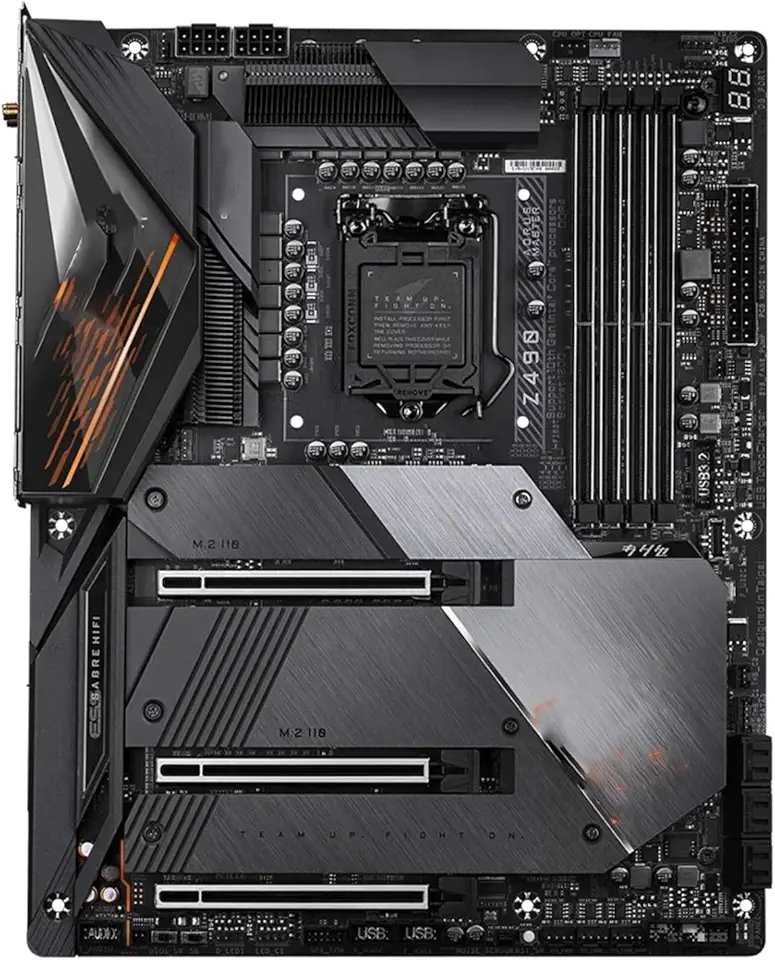
Motherboard Fit for Gigabyte Z490 AORUS Master LGA 1200 ATX Gaming Motherboard Support I9-10900K I7-10700K I5-10600K DDR4 3×M.2 1×PCI-E X16

CORSAIR Hydro X Series iCUE Link XH405i Custom Cooling Kit – Hardline Water Cooling Loop – XC7 Elite CPU Water Block – XD5 Elite D5 Pump Res – XR5 360mm Radiator – 3X QX120 RGB Fans

Corsair RM1000e Fully Modular Low-Noise ATX Power Supply - Dual EPS12V Connectors - 105°C-Rated Capacitors - 80 Plus Gold Efficiency - Modern Standby Support - Black
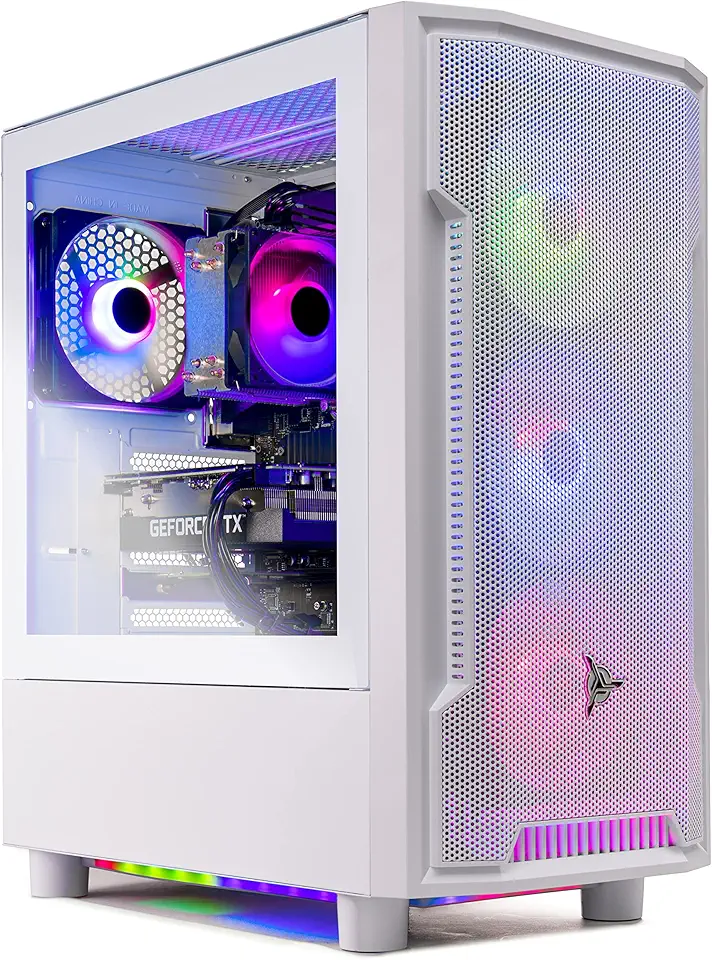
Skytech Archangel Gaming PC Desktop – AMD Ryzen 5 3600 3.6 GHz, NVIDIA RTX 3060, 1TB NVME SSD, 16GB DDR4 RAM 3200, 600W Gold PSU, 11AC Wi-Fi, Windows 11 Home 64-bit

Skytech Blaze 3.0 Gaming PC Desktop – Intel Core i5 12400F 2.5 GHz, NVIDIA RTX 3060, 500GB NVME SSD, 16GB DDR4 RAM 3200, 600W Gold PSU, 11AC Wi-Fi, Windows 11 Home 64-bit

Gaming Mini PC N2 Pro, Ryzen 7 6800H, 32GB DDR5 512GB M.2 NVME SSD, Radeon 680M Mini Computers, Uual USB4 8K UHD, Quad Display, WiFi 6E, BT-5.2, Mini Desktop PC/11 Pro/Office

BOSGAME P2 Plus Mini PC - Intel Core i7-12700H, 32GB DDR5, 512GB NVMe SSD | Thunderbolt 4, Triple 4K Display| Dual 2.5G LAN, WiFi 6, Bluetooth 5.2 | Win11 Pro Desktops for Work Gaming

Thermalright Aqua Elite 240 V3 Liquid CPU Cooler, 240 Cooling Row Size, 2 x 120mm PWM Fans, S-FDB Bearings,for AMD/AM4/AM5, Intel LGA1150/1151/1155/1156/1200/2011/1700,Desktop CPU Cooler AIO
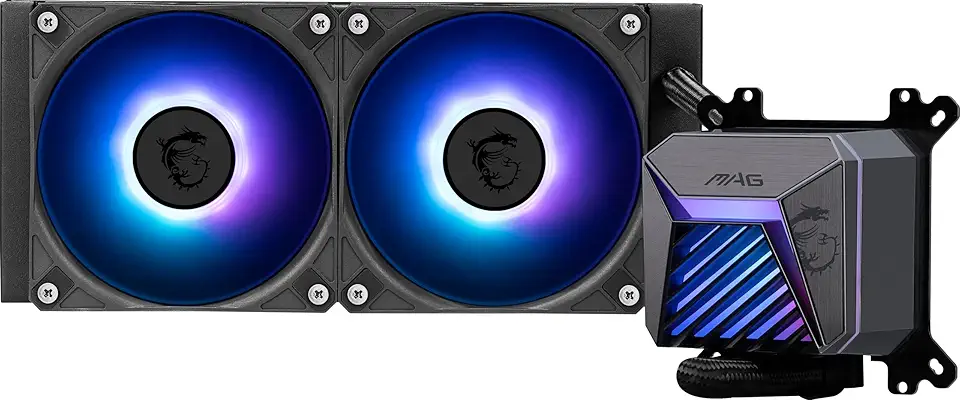
MSI MAG CORELIQUID A15 240 - AIO ARGB CPU Liquid Cooler - 240mm Radiator - AM5, LGA 1851 Ready - Dual 120mm ARGB PWM Fans, Black