Dockerfile >Docker Image > Docker Container | Beginners Hands-On | Step by Step


Automation Step by Step
@raghavpalAbout
Simple Basic Beginners Step-by-Step tutorials ❤️ I create videos on Automation, Testing, DevOps, CI and related tools, technologies and platform Raghav is a teacher and founder of AutomationStepByStep.com He was an Automation Architect and has led multiple teams of Automation and DevOps Engineers. For over a decade, Raghav witnessed, worked, and delivered multiple Automation Testing Projects and worked with some awesome people in this industry ► https://automationstepbystep.com/ Some topics covered: - Jenkins - JMeter - Selenium - Appium - Cypress - Playwright - Katalon Studio - API Testing - Postman - Docker - Kubernetes - Other DevOps topics Words from Raghav We often need someone to hold our hand and help us take the first few steps before we learn to walk and run. I am on a mission to spread education and make it available to anyone willing to learn Never Stop Learning Raghav All education here is FREE FOR ALL, FOREVER Share with as many people as you can in your lifetime


Video Description
All Free Tutorials - https://AutomationStepByStep.com/ Last session https://youtu.be/UgTt8qOsgEU STEPS Create a Dockerfile Add instructions in Dockerfile to create Docker image Run Dockerfile to create Docker image Run Docker image to create Docker container Access the application running in Docker container Dockerfile > Docker Image > Docker Container > Access the App Step 1 - Create a new directory *mkdir myapp* *cd myapp* Step 2 - Create a file called "index.html" *echo "Hello, world!" > index.html* Step 3 - Create a file named Dockerfile *touch Dockerfile* Step 4 - Open the "Dockerfile" file in a text editor and add the following lines: FROM nginx COPY index.html /usr/share/nginx/html This Dockerfile defines a new Docker image that - uses the official nginx image as a base - then copy the index.html file to the appropriate location in the image A Dockerfile is a text file with instructions to build a Docker Image When we run a Dockerfile, Docker image is created When we run the docker image, containers are created Step 5 - Start docker & Build docker image from dockerfile *docker build -t myapp .* This command builds a new Docker image with the tag "myapp" using the Dockerfile in the current directory. Step 6 - Run docker container from the image *docker run -p 8080:80 myapp* This tells Docker to run the myapp container and map port 8080 on your local machine to port 80 inside the container Step 7 - Access the app Open a web browser and navigate to http://localhost:8080 to see the "Hello, world!" message displayed in your web browser. If you are using AWS EC2 Linux, you will need to make sure that the security group for your AWS Linux instance allows inbound traffic on port 8080 (or whichever port you chose to map to port 80 inside the container). Here's how to modify the security group: Open the Amazon EC2 console at https://console.aws.amazon.com/ec2/. In the navigation pane, choose "Instances". Select your AWS Linux instance in the list. Choose the "Security" tab in the bottom pane. Select the security group associated with your instance and choose the "Edit inbound rules" button. Add a new rule with the following settings: Type: "Custom TCP Rule" Protocol: "TCP" Port Range: "8080" (or whichever port you chose to map to port 80 inside the container) Source: "0.0.0.0/0" (or restrict the source IP address range to your specific needs) After modifying the security group, you should be able to access the web page served by your Docker container by navigating to http://<Public_IP_of_your_instance>:8080 in a web browser. Also see: Terraform - https://youtu.be/hrwZ-iND3bs?si=Hfed8v213-QNaqaw ▬▬▬▬▬▬▬ Every Like & Subscription gives me great motivation to keep working for you You can support my mission for education by sharing this knowledge and helping as many people as you can If my work has helped you, consider helping any animal near you, in any way you can Never Stop Learning Raghav Pal ▬▬▬▬ USEFUL LINKS ▬▬▬▬ Ask Raghav - https://bit.ly/2CoJGWf Shorts Eng - https://bit.ly/3H9bifV Shorts Hindi - https://bit.ly/3XY7XqN GitHub Repositories - https://github.com/Raghav-Pal Udemy Discounts - https://automationstepbystep.com/udemy-discounts/ Stories - https://automationstepbystep.com/stories/ ▬▬ CI | CD | DEVOPS ▬▬ Jenkins Beginner - https://bit.ly/2MIn8EC Jenkins Tips & Trick - https://bit.ly/2LRt6xC Docker - https://bit.ly/2MInnzx Jenkinsfile - https://bit.ly/3JSMSZ7 Kubernetes - http://bit.ly/2MJIlMK ▬▬ API TESTING ▬▬ Web Services (API) - https://bit.ly/2MGafL7 SoapUI - https://bit.ly/2MGahmd Postman 2022 - https://bit.ly/3JWm4qX Rest Assured - https://bit.ly/3zUdhRD Karate API Testing - https://bit.ly/3w3H5Ku JMeter API Testing - https://bit.ly/3AgVPar Katalon Studio API Testing - https://bit.ly/2BwuCTN API Mocking - https://bit.ly/3bYPsjS ▬▬ PERFORMANCE TESTING ▬▬ JMeter Beginner - https://bit.ly/2oBbtIU Gatling - https://bit.ly/3QrWfkV Dockerfile Tutorial for Beginners Creating a Docker Image: Step-by-Step Guide Hands-on Docker Container Creation for Beginners How to Build a Docker Image from Scratch Dockerfile Basics: A Complete Guide Dockerfile and Docker Image Creation for Beginners Beginner's Guide to Building a Docker Container from a Dockerfile Docker Image Creation: A Comprehensive Tutorial Creating Your First Docker Container: A Beginner's Hands-On Guide Step-by-Step Guide to Building Docker Images and Containers for Beginners —








Upgrade Your Gaming Setup Now
AI-recommended products based on this video

95MM T129215SU Cooling Fan for ASUS ROG Strix for GeForce RTX 3060 3070 3080 3090 Ti Graphics Card CF1010U12S/D T129215BU(Black A-Fan T12)
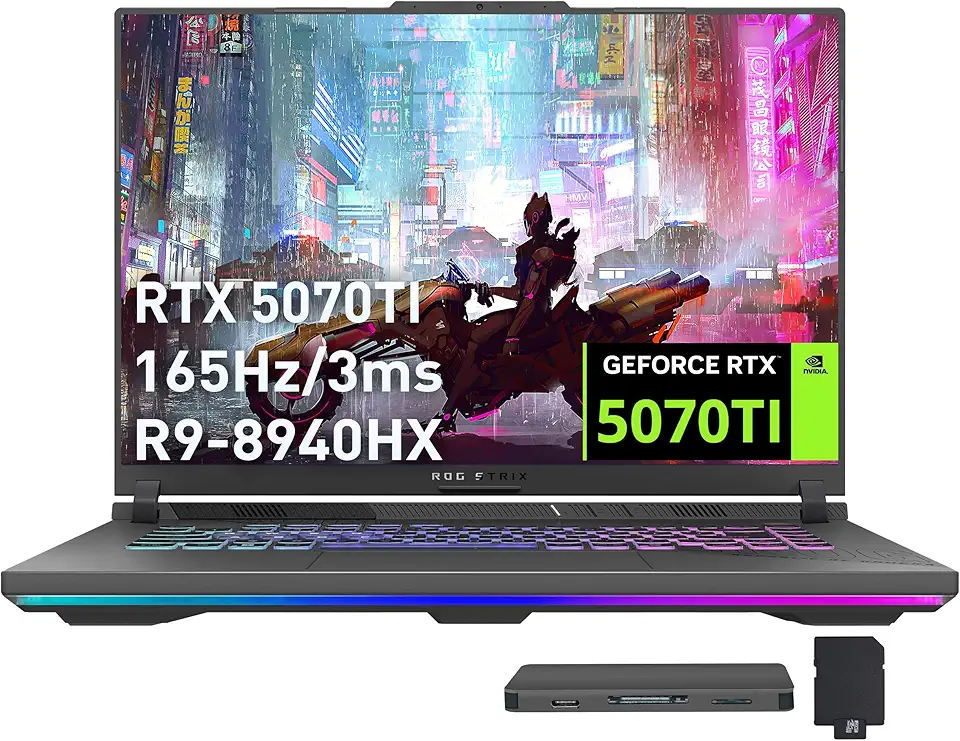
ASUS ROG Strix G16 Gaming Laptop, GeForce RTX 5070 Ti 12GB GDDR7, AMD Ryzen 9 8940HX, 64GB DDR5, 2TB SSD, Backlit Keyboard, Wi-Fi 6E, 16" WUXGA 165Hz Display, Win 11, Gray, 1TB Docking Station Set

ASUS ROG Strix G16 (2024) Gaming Laptop, 16” 16:10 FHD+ 165Hz, GeForce RTX 4060, Intel Core i7-13650HX, 16GB DDR5, 1TB PCIe SSD, Wi-Fi 6E, Windows 11, G614JV-AS71-CA

Asus ROG Gladius III Wireless AimPoint Gaming Mouse, Connectivity (2.4GHz RF, Bluetooth, Wired), 36000 DPI Sensor, 6 programmable Buttons, ROG SpeedNova, Replaceable switches, Paracord Cable, White

MSI Stealth A18 AI+ A3XWIG-013CA 18" UHD+ mini LED 120Hz Gaming Laptop, AMD Ryzen AI 9 HX 370, RTX 5080, 64GB DDR5, 2TB NVMe SSD, Windows 11 Home
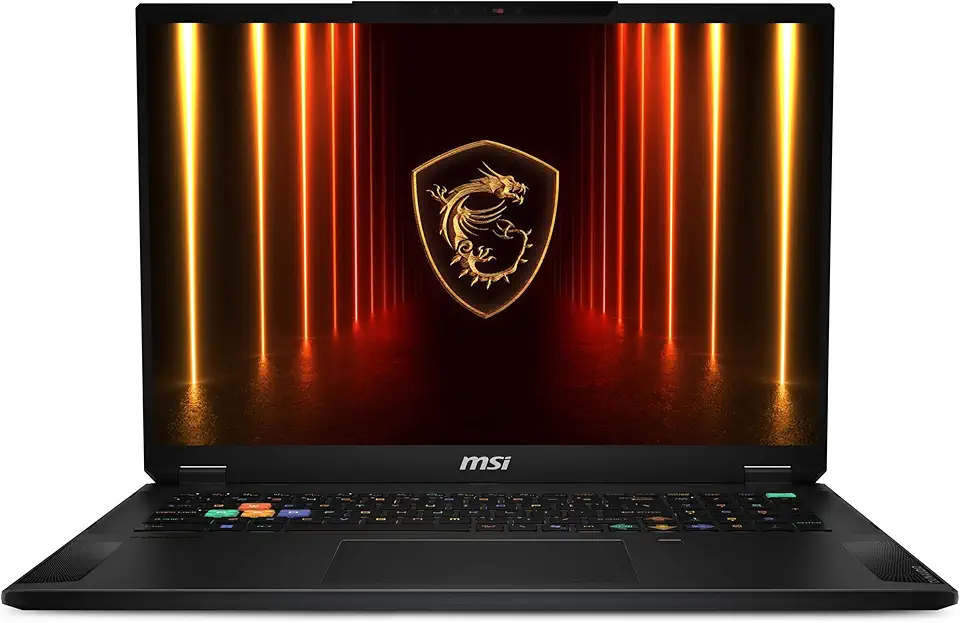
MSI Stealth 18 HX AI 18” 240Hz QHD+ Gaming Laptop: Intel Ultra 9-275HX, NVIDIA Geforce RTX 5080, 32GB DDR5, 2TB NVMe SSD, Wi-Fi 7, Win 11 Home :Midnight Black A2XWIG-045US

230W Charger Compatible with Razer Blade 14” 15” 16" 17” (2025-2018) RZ09 RTX-3060/3070/3080/4060/4070 Gaming Laptop RC30-0530 RC30-0238 RC30-0248 Replacement Power Adapter

llano RGB Laptop Cooling Pad with Powerful Turbofan Gaming Cooler Radiator with Infinitely Variable Speed, Touch Control, LCD Screen, 3-Port USB Hub, Seal Foam for Notebook Computer 15-19in

Logitech G435 Lightspeed and Bluetooth Wireless Gaming Headset - Lightweight Over-Ear Headphones, Built-in mics, 18h Battery, Compatible with Dolby Atmos, PC, Mobile - Black

Logitech G305 Lightspeed Wireless Gaming Mouse, Hero 12K Sensor, 12,000 DPI, Lightweight, 6 Programmable Buttons, 250h Battery Life, On-Board Memory, PC/Mac - Black

Logitech M185 Wireless Mouse, 2.4GHz with USB Mini Receiver, 12-Month Battery Life, 1000 DPI Optical Tracking, Ambidextrous, Compatible with PC, Mac, Laptop - Black
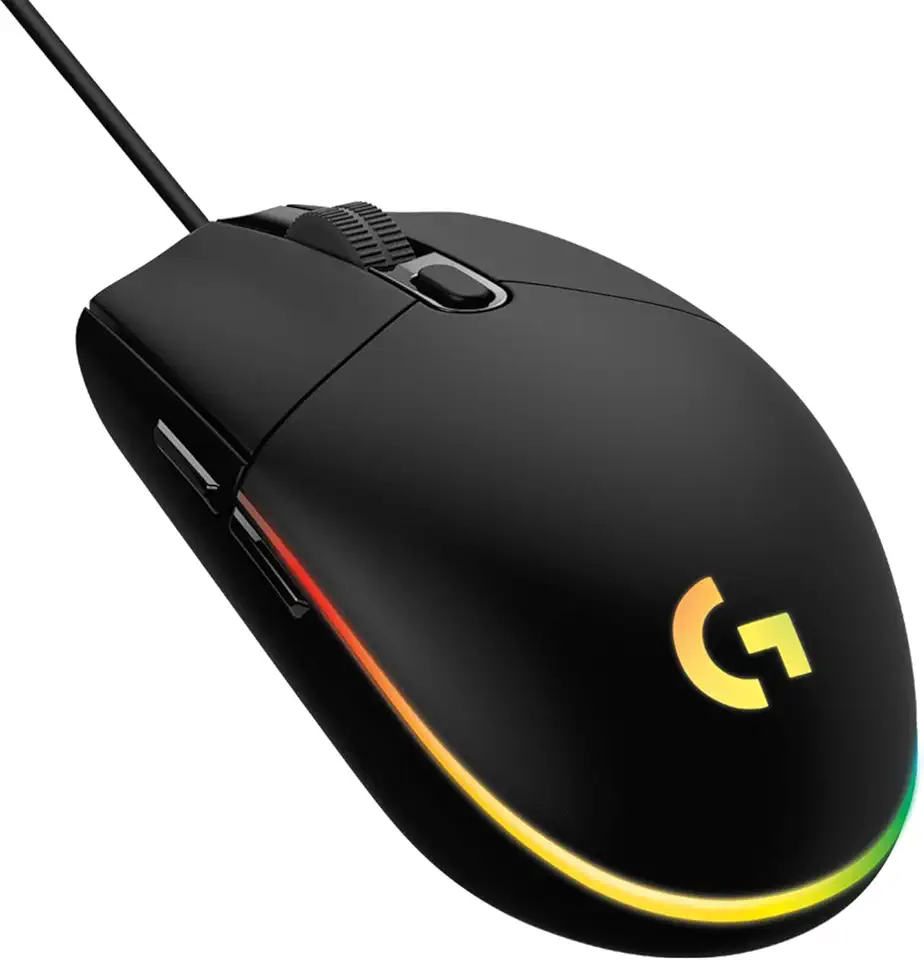
Logitech G203 Wired Gaming Mouse, 8,000 DPI, Rainbow Optical Effect LIGHTSYNC RGB, 6 Programmable Buttons, On-Board Memory, Screen Mapping, PC/Mac Computer and Laptop Compatible - Black

Razer Universal Quick Charging Stand for Xbox Series X|S: Magnetic Secure Charging - Matches Forza Horizon 5 Limited Edition Xbox Wireless Controller - USB Powered - (Controller Sold Separately)

NEW SteelSeries Arctis Nova 3 Multi-Platform Gaming Headset - Signature Arctis Sound - ClearCast Gen 2 Mic - PC, PS5/PS4, Xbox Series X|S, Switch, Mobile

New SteelSeries Arctis Nova Pro for Xbox Multi-System Gaming Headset - Premium Hi-Fi Drivers - Hi-Res Audio - 360° Spatial - GameDAC Gen 2 - Quad-DAC - ClearCast Gen 2 Mic - Xbox, PC, PS5/PS4, Switch

Western Digital 2TB WD Blue SA510 SATA Internal Solid State Drive SSD - SATA III 6 Gb/s, 2.5"/7mm, Up to 560 MB/s - WDS200T3B0A

Corsair Vengeance LPX 32GB (2 X 16GB) DDR4 3200 (PC4-25600) C16 1.35V Desktop Memory - Black

Asus Dual NVIDIA GeForce RTX 3050 6GB OC Edition Gaming Graphics Card - PCIe 4.0, 6GB GDDR6 Memory, HDMI 2.1, DisplayPort 1.4a, 2-Slot Design, Axial-tech Fan Design, 0dB Technology, Steel Bracket
