Automate Android - How to Launch an App When the Device Boots Up


Explaining Android
@explainingandroidAbout
Hi, my name is Doug and I love getting to spend time with my girlfriend Shaylah. I deal with anxiety just about every day. I'm a shy, introverted person by nature but I have a passion for technology. This is where I upload all of my Android tips and tutorial videos. My goal here is to create a repository for as many tips and device tutorials as possible. Helping folks to learn about the device most of us keep on our person's all day.
Latest Posts


Video Description
We can use an app called MacroDroid to automate Android so that it will open an application or game when the device turns on. ~~~~~ Hi! Don't forget to like the video, subscribe to the channel, and hit the "Thanks" button on this video, if you can, and join our channel community here - https://www.youtube.com/channel/UCnowc_KHgjVNj3Y-E-oQ8aw/join Video Description ~~~~~~~~~~~~~~~~~ I was browsing through the /r/AndroidApps subreddit recently and found a post from someone asking how the community would set up an Android device to launch an application right when the device boots up. So in today's video I'll be showing you exactly how that is done. There are a number of ways we can make this happen, since there are many automation options available in the Google Play Store. OEMs have even begun baking in their own automation system into their firmware but in an attempt to make this as universal as possible, I'll show you how this is done using MacroDroid. I understand that other apps like Tasker are more powerful as they can automate more things. But until the UI is redesigned I just can't recommend that to people who are not already familiar with it. MacroDroid is just easier to understand and still covers the majority of what people want in an automation application. You can start by simply searching for this in the Google Play Store, but I'll include a direct link down in the video description for those who would prefer that. Once installed, let's open up the application and tap through the introduction cards. Now, we want to add a new Macro to the application, so let's tap the Add Macro button here and this is where we will set up our trigger and our action. If you're wanting to do something when the device boots up, we first need to set up the Trigger. So tap the Plus icon in the Trigger card and then search for "Boot" a the top here. This sets up the macro so that something will happen when the device has booted up. And this will trigger no matter if we do a simple restart or if we perform a cold boot from the device being completely shut off. Now we want to set up an action that is performed when the macro has been triggered. So let's tap the Plus icon from within the Actions card and we'll just tap the Applications category here at the top. We are wanting this macro to open up an app or game when it has been triggered, so let's tap on the Launch Application option here. You are going to see this prompt appear about needing overlay permission. This just how Android's permission system is set up so if you want this macro to work we need to toggle it on for the MacroDroid application. With that done, we can then go back and finish setting up this action. MacroDroid has some optional settings for launching an application as a trigger, but in my testing neither of these are required. However, you may find them useful in your specific use case. I'm just going to have the Android device launch the Chrome app in this example, but you can scroll through this list and select any app or game that you want. Let's restart the phone so you can see this type of automation is possible on Android and that what we just set up actually works. Mentioned Links ~~~~~~~~~~~~~~~~ MacroDroid - https://play.google.com/store/apps/details?id=com.arlosoft.macrodroid Step by Step Tutorial ~~~~~~~~~~~~~~~~~ 1. Intro [00:00] 2. Install MacroDroid [01:11] 3. Add a Macro [01:45] 4. Add a Trigger [02:08] 5. Add an Action [02:35] 6. Name the Macro [04:23] 7. Testing it out [05:03] 8. Conclusion [05:59] As an Amazon associate, I may earn a commission on sales from the links below. The Gear I Use ~~~~~~~~~~~~~~~~~ 5W "Slow" Charger - https://amzn.to/2OaUMV8 Fast Charger - https://amzn.to/3rtBsC6 MicroUSB Cable - https://amzn.to/38dkpeM USB-C Cable - https://amzn.to/2OqlTvi TPU Cases - https://amzn.to/38g9b9w USB-C to 3.5mm Dongle - https://amzn.to/3rVt7c3 USB-C to 3.5mm DAC - https://amzn.to/3CyksSJ NVIDIA Shield TV - https://bit.ly/3KA17RV


![Epic Games Files Lawsuit Against Google and Samsung for using Auto Blocker [Android News Byte]](https://imgz.pc97.com/?width=500&fit=cover&image=https://i.ytimg.com/vi/4xtlrlLwjsM/hqdefault.jpg)


Automate Your Android Now
AI-recommended products based on this video

Proof Ball: AI-Powered Fish Measuring Tool – Accurate, Portable, Easy-to-Use Fishing Accessory with Free Fishtechy App for iOS & Android

Nelko Photo Printer, PP01 Color Portable Mini Photo Printer, Instant Smartphone Inkjet Sticker Printer, Sticky-Back Photos, for iOS & Android, Picture Printer for Christmas, Fun Editing App, White

Air Tracker Tags-4 Pack: Smart Bluetooth Tracker, Item Finder Works with Apple Find My (iOS Only) App, Trakcer Tag Locator for Keys, Luggage, Satchel, Backpack etc. (Not for Android Devices)
Proof Ball: AI-Powered Fish Measuring Tool – Accurate, Portable, Easy-to-Use Fishing Accessory with Free Fishtechy App for iOS & Android
Nelko Photo Printer, PP01 Color Portable Mini Photo Printer, Instant Smartphone Inkjet Sticker Printer, Sticky-Back Photos, for iOS & Android, Picture Printer for Christmas, Fun Editing App, White
Air Tracker Tags-4 Pack: Smart Bluetooth Tracker, Item Finder Works with Apple Find My (iOS Only) App, Trakcer Tag Locator for Keys, Luggage, Satchel, Backpack etc. (Not for Android Devices)

AOCHUAN Gimbal Stabilizer Smartphone Phone Video: Smartphone Gimbal Phone Stabilizer Smartphone Gimbal Video Recording estabilizador Magnetic Fill Light 3-Axis Foldable Android Gimble, Smart XE Kit
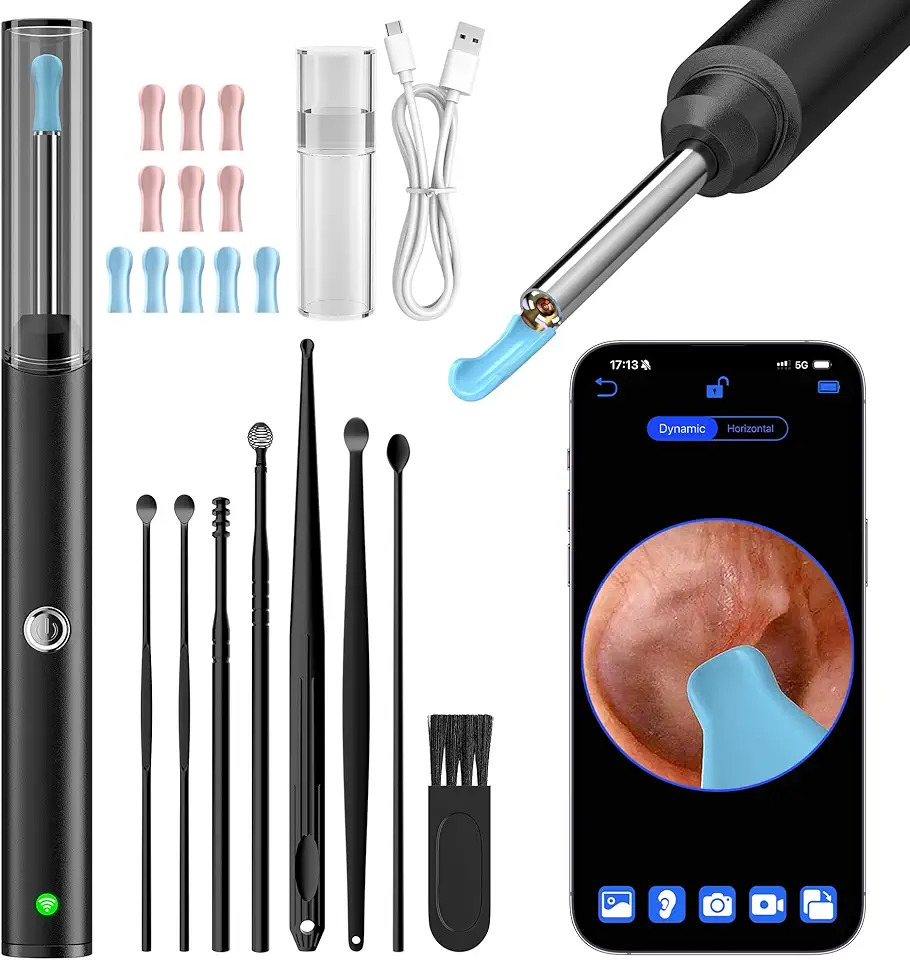
Ear Wax Removal, Ear Cleaner with 8 Pcs Ear Set, Ear Wax Removal Kit, 1296P HD Endoscope with 6 LED Lights, Kids Adults Ear Cleaning Gift, Compatible with iPhone & Android Smart Phones
